Definition of User Acceptance Testing (UAT)

UAT directly involves the intended users of the software. UAT can be implemented by making software available for a free beta trial on the Internet or through an in-house testing team comprised of actual software users.

Following are the steps involved in in-house UAT:

  • Planning: The UAT strategy is outlined during the planning step.
  • Designing test cases: Test cases are designed to cover all the functional scenarios of the software in real-world usage. They are designed in a simple language and manner to make the test process easier for the testers.
  • Selection of testing team: The testing team is comprised of real world end-users.
  • Executing test cases and documenting: The testing team executes the designed test cases. Sometimes it also executes some relevant random tests. All bugs are logged in a testing document with relevant comments.
  • Bug fixing: Responding to the bugs found by the testing team, the software development team makes final adjustments to the code to make the software bug-free.
  • Sign-off: When all bugs have been fixed, the testing team indicates acceptance of the software application. This shows that the application meets user requirements and is ready to be rolled out in the market.

UAT is important because it helps demonstrate that required business functions are operating in a manner suited to real-world circumstances and usage.


Fonts: http://www.techopedia.com/definition/3887/user-acceptance-testing-uat

Double_Tap issue -> Calabash-android 0.5.4

Hello folks,

I updated my calabash-android to the new version 0.5.4 and I noticed that my double tap function stopped work on devices.

Seems that now, you need to write query before the element address, like this > double_tap(query(“WebView index:2 css:’xxxxxx'”))

Before I was using double_tap(“WebView index:2 css:’xxxxxx'”) and was working properly.
>> Guys, after I update to calabash-android 0.5.5 I had to remove the query again, and now it is working this way again:

double_tap(query(“WebView index:2 css:’xxxxxx'”))

Just a fast note about this issue that I had.

See you guys 🙂

BDD – Summarized in 13 questions/tips and 1 example

Hi guys, today I will post a summary of a meet up that I went about BDD. It was very interesting and more clear than the others texts/posts that I found about.

1 –  Communication with all teams (business, developers, tests since beginning) is the key – Everyone should participate.

2 – What is the value of the scenario ?

3 – Could you write in another way/different steps ?

4 – Could you use the same steps ?

5 – Could you join some steps in other scenario to spend less time when you run the feature ?

6 – Your flow is decreasing the possible points of misunderstood gaps ?

7 – Are you doing the scenarios with participation of everyone in the beginning of the project ? When everyone is understanding the same thing and you starts to worry about tests in the beginning of the project, you spend less time/money than write test cases after development. Pay attention in your flow.

8 – Be curious ! Ask !

9 – Everything should be automated ? Remember that the effort spent when you automate something can be less valuable than manual testing.

10 – How many steps are you using in the scenarios, try don’t use more than 4 or 5. Make it simple.

11 – Use page object model – Better structure

12 – Be clear and objective when write the steps

13 – The feature is your documentation for end users, testers, developers. Following one of the Scrum rules, you don’t need more than this in your documentation process. Less time spent, more clear than huge documents (Because it uses examples), keeps the documentation together with the test.

14 – Use 4 layers – Example :

bdd

Thanks John F. Smart !

Best Practices in Mobile Game Testing

Hello everyone, automating tests for your mobile application is the best way to increase the effectiveness, efficiency and coverage of your software testing. The test automation for mobile has been considered a critical factor for big mobile app companies but for the small ones this is very expensive. Small companies want to grow fast so automation is too expensive for them.

Black box – For game tests you should know that you need focuses on the functional and overall playability aspects of the game. Examples: graphics, special effects, animations, colours.

White box – focuses on the architectural, integration and systemic aspects of mobile game. Examples: how third-party components, databases, social media/external entities, as well as graphics/game engines, audio play and so on are integrated in to your game.

It is typically recommended to build test scripts that know how game is progressing, what kinds of faulty states could there be, and also focus on image recognition. As many graphics cannot be recognized as control mechanism – buttons, menus, sliders etc. – image recognition will help to identify those that are meant for controlling (and not just as a graphical element).

Compatibility testing is all about making that game compatible across different devices. The typical misconception with compatibility testing is that it will be only done with the final version of the game. If compatibility testing is done during all development releases – regression tests– it can help to reveal incompatibility issues with any parts of the game, its third-party components or integrations with those actual devices that end-users use. This is very important to get the game working robust and well across all possible device variants – hardware and software. (But remember that will be impossible tests in each device and version of android)

Performance testing Many games are by default developed (and tested) on high-end devices, without any chance to get decent performance level on low-end devices. For this reason, try to understand what are the devices/versions of OS most used for your clients. This way you can focuses more in devices that your clients are using. For example, take a look at Gamebench. It can help game developers to understand those potential bottlenecks in performance, reveal unused potential with CPU and GPU resources, and help to push the boundaries of Android gaming and visuals, without forgetting the most important thing – a need to test the game on real devices. You should consider creating tests which last for hours to observe how well the game as well as how much of battery is used during long usage. To determine if you game will be able to run successfully for a sustained duration under heavy load, Load/Stress tests can be used. The performance tests will measure how responsive your game can be on a real device.

Localization testing becomes highly important when your game is targeted for the global markets. The word ‘global’ means your game needs to be ‘local’ for everyone. When your game titles, texts and content needs to be translated and tested with devices in multiple languages, these types of tests can be easily performed automatically (with help of cloud-based device access and test automation) to change the language of devices, and even do it again with the same test runs. The problems layouts can be easily picked from screenshots.

Load testing tests the limits of a system, such as the number of players on a server, the graphic content on the screen (e.g. frames per second, FPS), or memory consumption (allocation and deallocation of it). In this category you can count in multi-player testing as it can involve several different scenarios to be tested.

Multiplayer – A need to test multi-player abilities is there and is naturally more challenging and requires the other end to perform as a real counterpart. For example, typical case is that the game communicates with backend server. In these cases, connectivity is essential and the synchronization between backend and devices that need to get information about the gameplay.

Real occurring events on background – Interrupts, battery consumption, how charger effects to overall performance and usage. These all have significant impact on user experience – and good entertainment level.


**Don’t forget to test:

UI layouts and elements: All games are typically targeted for maximal set of different screen resolutions and different types of screens. Regression testing should be done each and every time when UI layout changes to ensure that game works.
Menu structure and functions: Testing menu structured, functionality and correct behaviour
Screen orientation: both landscape and portrait modes
Screen resolution: There are lots of screen resolutions especially on Android and typically autoscale can help game developers
Social Integrations: In many games, it is essential to be able to share results across your ecosystem, friends or just for yourself.
Security: identifying third-party code, its vulnerabilities, and license restrictions are very often neglected by game devs.


I summarised the most important and not duplicated parts. If you have any questions, just write below on the comments. Thank you 🙂

Font: http://testdroid.com/testdroid/7790/best-practices-in-mobile-game-testing

Running Selenium Headless Firefox in UBUNTU

If you want run your tests with Selenium without open the browser Firefox, I will write how you can do this:

Verify if you have the last version of Firefox.

1 – Install Firefox headless in Ubuntu

  • Open the file: /etc/apt/sources.list and add the line:
    ppa:mozillateam/firefox-stable
  • Open the terminal and run the commands:
     sudo apt-get update
     sudo apt-get install firefox


2 – Install Xvfb – the X Virtual FrameBuffer. This piece of software emulates the framebuffer using virtual memory which lets you run X-Server in machines with no display devices. This service is required to make browsers run normally by making them believe there is a display available.

  • Open the terminal and run the command:
    sudo apt-get install xvfb
  • Lets run the xvfb service in a display number which is less likely to clash even if you add a display at later stage. For this example, we will assume a display, 5. The parameter -ac makes xvfb run with access control off. The server should be running now.sudo Xvfb :5 -ac


3 – Start browser headlessly in Ubuntu

  • Run the command:
    export DISPLAY=:5
    firefox

If there was no error on the terminal, then you have successfully running firefox headlessly in Ubuntu. The command should keep running until you kill the process by pressing ctrl+ C or similar. There wont be any output. Now, you can run selenium server as you will run in your local machine.


Fonthttp://www.installationpage.com/selenium/how-to-run-selenium-headless-firefox-in-ubuntu/


Identify properties and filter in the query – Calabash

Hello guys ! I hope you are well :)}

I will show how you can search for other property of an element beyond that appears when you query an element with calabash.

A simple query wich returns a property is:

query("UIView", :textContent)

But if you want returns color, or other property beyond the simple one (textContent, y, x, rect, class, id, label, etc…). You can see what types of properties/attributes this element/class can returns and use. You can see the list of properties/attributes that each element/class returns here. All that you need to know is the class of the element. First, you do the simple query and discover the class of this element and after search this class in the UIKit of iOS. There is a short-hand form of specifying UIKit class-names. For example, if you just write label this is automatically translated to UILabel (which is a common UIKit class). In general, ClassName expressions that don’t start with view: get re-written. For example:xyzAbc will get re-written to view:'UIXyzAbc'

So if you discover that an element uses the class UIView, you can click in correspondent class and discover the list of attributes/properties that you can search for. Example:

- :backgroundColor
- :hidden
- :alpha
- :opaque
- :maskView
- :layer
- :accessibilityLabel

In Android the Views (also the TextView) can have almost anything as a background not just a color (a bitmap, a shape, a gradient color, etc). Because of this there is no way to get the background color of a view (it is not stored).

There is a simple form of specifying classes. For example, if you just write button this matches all views which have a class with simple name “button” (or “Button” as this is case in-sensitive). Remember that the simple name of a class is the last segment of the fully qualified class name, e.g., for android.widget.Button it is Button

This is not a limitation of Calabash but the Android system. You can get any property of an Android view if it is accessible.

The property names map to “getter”-methods of the view objects. In general prop:valwill try to call:

  • prop()
  • getProp()
  • isProp()

You can query the following colors on the TextView (nothing is background):

- text color :currentTextColor
- hintTextColor :hintTextColor
- highlight color :highlightColor
- shadow color :shadowColor

You can identifying the properties of the class if you open the project and open the class file that you want to know the attributes. There you can find the properties that you can filter with calabash too.

– Examples:

Radio:

query("RadioButton id:'radio_male'",:setChecked=>true)
query("RadioButton id:'radio_male'",:setChecked=>0)


Check:

query("CheckBox id:'check_update'",:isChecked)
query("CheckBox id:'check_update'",:isChecked=>1)
query("CheckBox id:'check_update'",:checked)
query("CheckBox id:'check_update'",:setChecked=>true)

 Progress Bar:

query("RatingBar",setProgress:4)
query("RatingBar",:setProgress=>4)
query("RatingBar",:getProgress)
query("RatingBar",:method_name=>'getProgress', :arguments=>[])
query("RatingBar",:method_name=>'setProgress', :arguments=>[5])


Date:

query("datePicker",:method_name =>'updateDate',:arguments =>[1990,11,30])


Text:

query("EditText id:'email_input'",:getText)
query("EditText id:'email_input'",:text)
query("EditTextid:'email_input'", :method_name=>'setText',:arguments=>['test@test.com'])
query("EditTextid:'email_input'", :method_name=>'getText',:arguments=>[])

indexPath: A special construct that supports selecting cells in UITableViews by index path. The general form is:

"tableViewCell indexPath:row,sec"

where row is an number describing the row of the cell, and sec is a number describing its section.

In general, you can filter on any selector which returns a simple result like a number, string or BOOL.

"button isEnabled:1"


iOS Directions:

There are four directions descendantchildparent and sibling. These determines the direction in which search proceeds.

Both descendant and child looks for subviews inside a view. The difference is that descendant keep searching down in the sub-view’s subviews, whereas child only looks down one level. The direction sibling searches for views that are “at the same level” as the present view (this is the same as: first find the immediate parent, then find all subviews except for the view itself).By default the direction is descendant, which intuitively means “search amongst all subviews (or sub-views of sub-views, etc).” But you can change the traversal direction. Here is an advanced example:

query("label marked:'Tears in Heaven' parent tableViewCell descendant tableViewCellReorderControl")


Android Directions:

There are three directions descendantchild, and parent. These determines the direction in which search proceeds.

Often, query expressions are a sequence of ClassName expressions. For example:

 "linearLayout editText"

this means “first find all linearLayouts, then inside of those, find all the editText views”. The key here is the word inside. This is determined by the query direction.

By default the direction is descendant, which intuitively means “search amongst all subviews (or sub-views of sub-views, etc).”

Fonts:

8 Tools to Check Cross-Browser Compatibility

Hii guys, you know how is hard test cross-browsers. We have a lot of problems with versions of different browsers, different SOs and for this huge possibilities it is impossible to test your automation in every browser with all possibilities of SOs and configuration.

So, here are the list of tools that you can check cross-browser compatibility:

Ghostlab offers synchronized testing for scrolls, clicks, reloads and form input across all your connected devices, meaning you can test the entire user experience, not just a simple page.

Price: $49

BrowserStack provides live, web-based browser testing with instant access to every desktop and mobile browser (currently more than 300), with the ability to test local and internal servers, providing a secure setup. The cloud-based access means no installation is required, and the pre-installed developer tools (including Firebug Lite, Microsoft Script Debugger and many more) are useful for quick cross-browser testing and debugging.

Price: $39 per month (Solo) – $399 per month (Enterprise)

Sauce Labs allows you to run tests in the cloud on more than 260 different browser platforms and devices, providing a comprehensive test infrastructure including Selenium, JavaScript, Mobile and Manual testing facilities. There’s no VM setup or maintenance required, with access to live breakpoints while the tests are running so you can jump in and take control to investigate a problem manually.

Price: $12 per month (Manual) – $149 per month (Small Team)

Spoon.net is a browser sandbox (currently Windows-only) to test or deploy multiple versions of current, beta or legacy web browsers without maintaining cumbersome virtual machines. Just log in, install a small plugin, select the browser you want to test and it will launch instantly. Because Spoon.net runs the applications in isolated “sandboxes,” you can run multiple applications side-by-side without any conflicts or dependencies.

Price: Free – $99 per month (Team)

CrossBrowserTesting offers a live testing environment with access to more than 130 browsers across 25 different operating systems and mobile devices, so you can interactively verify your layout and test AJAX, HTML Forms, JavaScript and Flash.

Price: $29.95 per month (Basic) – $199.95 per month (Business)

Browsera tests cross-browser layout problems by automatically comparing each browser’s output and locating and reporting JavaScript errors. You can test pages behind logins, as Browsera can handle logging in prior to running each test, with no installation required (the service runs entirely in the cloud).

Price: Free – $99 per month (Premium)

IE NetRenderer allows you to check how your website performs in Internet Explorer 5.5 through 11. Just type in your URL and see how your website appears in common IE versions. Once rendered, you can choose between nine versions of IE, and you’re presented with the processing time of the request and the dimensions of your website design.

Price: Free

TestingBot provides easy cross-browser testing with Selenium, either manually or automated, with more than 100 browser and OS combinations. The live, manual testing allows you to control any browser in the cloud interactively from your own browser. You can run automated tests in the cloud by specifying which browsers you want to test, when the test should run and for how long.

Price: $40 per month (Small Team) – $250 per month (Custom)


You can filter and choose the best tool for what you need with this excellent site, just choose the options that you want to filter (Really it is very useful): http://www.qatestingtools.com/taxonomy/term/59/table

In this site below you can find 13 tools, but I just chose these 8 because I think that are the most relevant of the research.

Fontshttp://mashable.com/2014/02/26/browser-testing-tools/

New version XCode 6 – Error with Calabash 0.9.169

Hi guys, to everyone is having this problem I just have the solution for the moment, we are waiting the new release of calabash/Xcode with the issues fixed.

Error when update the Xcode to 6 and maintain calabash 0.9.169:

WARN: expected Xcode instruments version to be ‘5.1’ or ‘5.1.1’ 
        but found version ‘6.0’

        Gem needs a manual update for Xcode 6.0! 

Unable to find AutomationInstrument.bundle (RuntimeError)
I tried update the calabash to “0.10.0.pre1” but I still found problems… So I just reinstall the XCode 5 until they fix the problems:


Download Xcode 5 and reinstall: https://developer.apple.com/downloads/index.action

If you still having problems, download the project and run both scripts install.sh as sudohttps://github.com/kstenerud/iOS-Universal-Framework

So, we are tracking this bug and I hope the solution come fast 🙂

9 steps to Configure Jenkins with Calabash/Cucumber

Hi all,

I will show how configure your calabash automation and your git repository on a jenkins job in only 9 steps.

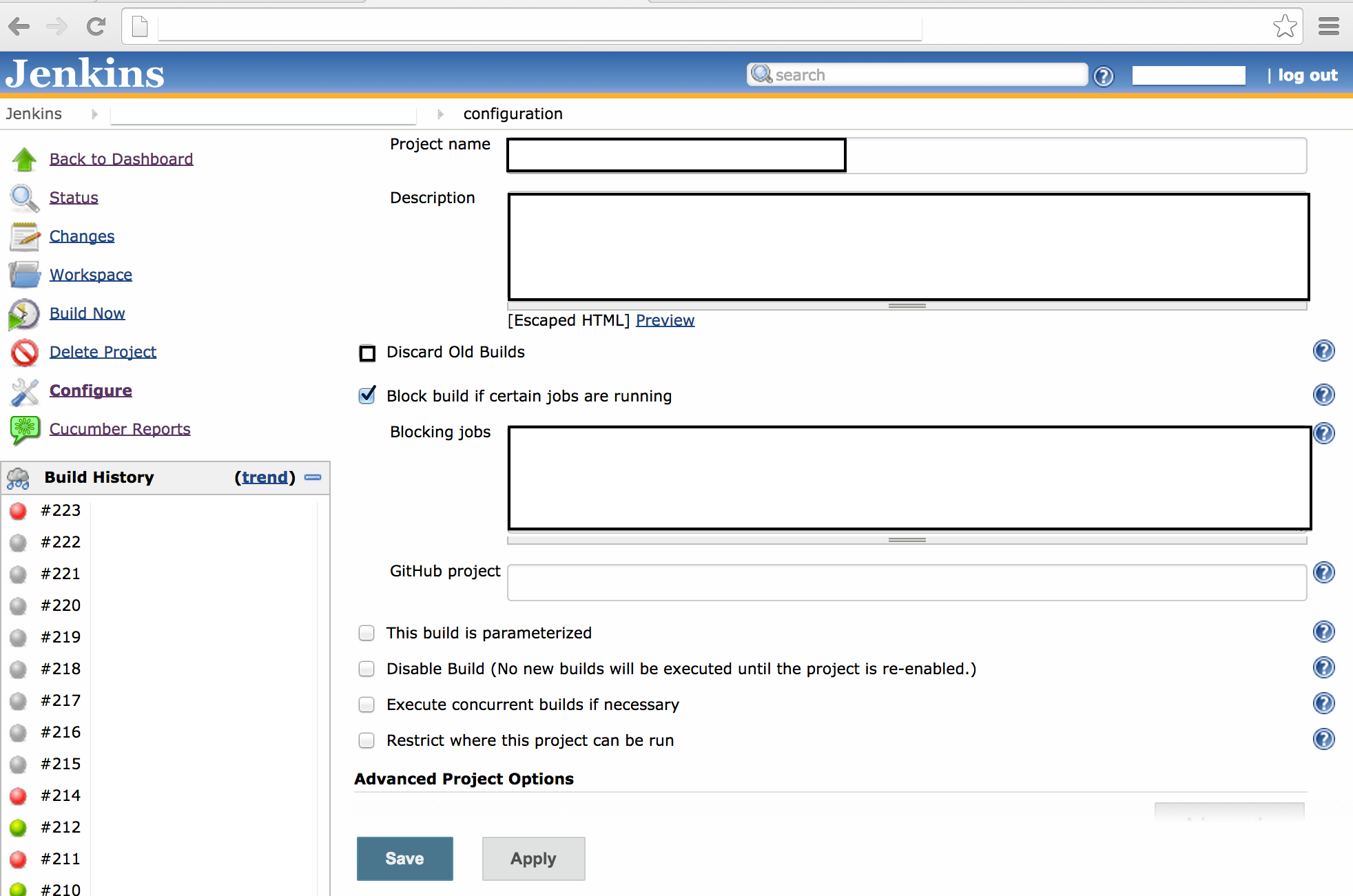
First – Create a new job and write the project name, description and Blocking jobs (If you have any, check the block build…). In this step you can choose if you want discard the old builds or not ( I advise to not discard, it is good maintain as an evidence). Git hub project: Write the URL of your project on github and the other options about your build (generally you don’t need to check).

page1

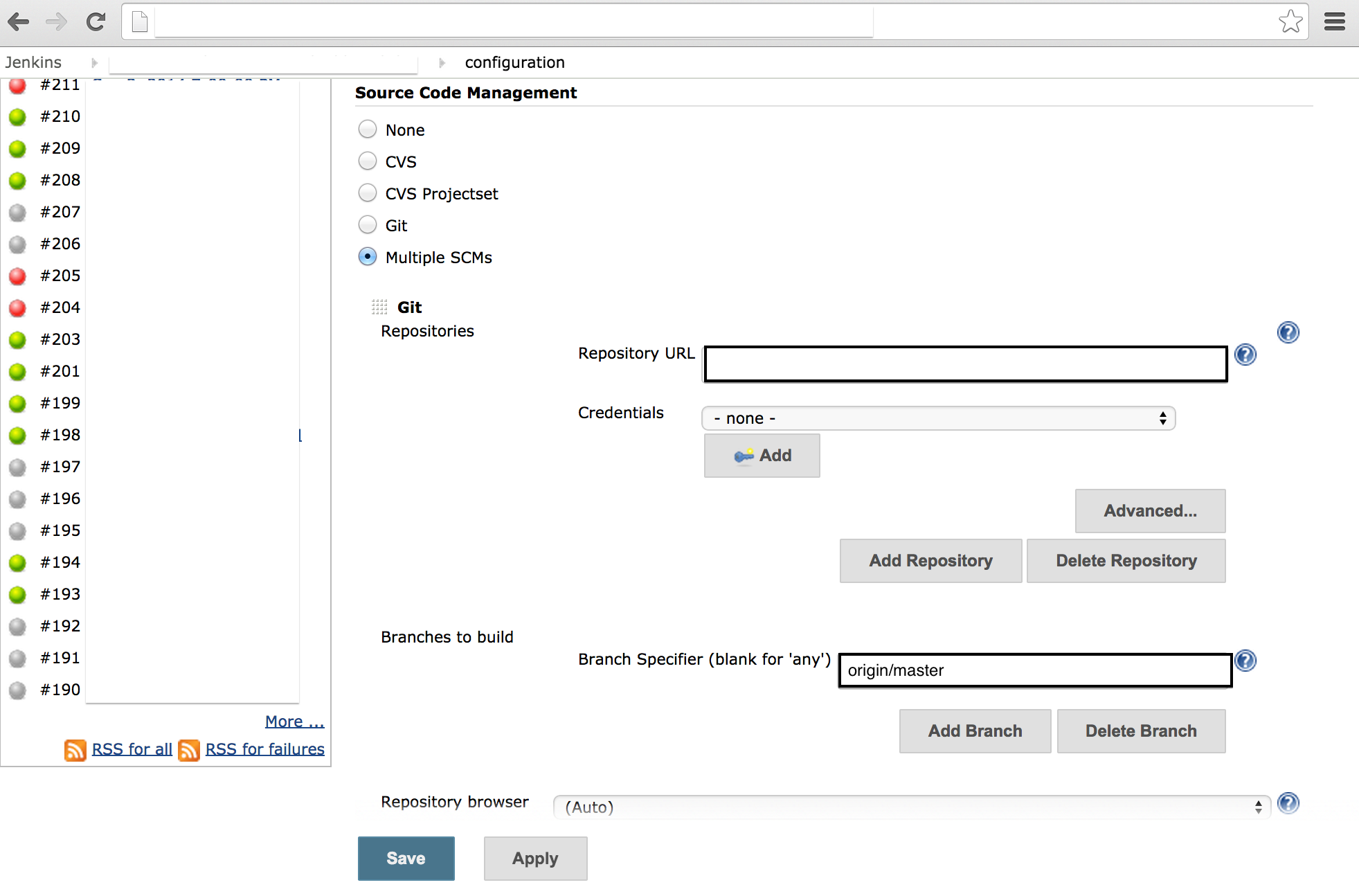
Second – Source Code Management, you need to choose if will be one or multiple repositories (Multiple SCMS in this case). After, you write the Repository URL (Example: https://github.com/xxxxx/XXXX.git), put your credentials (if you need some to clone the repository) and click to Add, If you are using multiple repositories you can add more on Add Repository button.

In the same screen, write the branch that you will use to build the app. In this example I am using this first repository to build the app with the most up to date branch (Where the devs are working)

page2

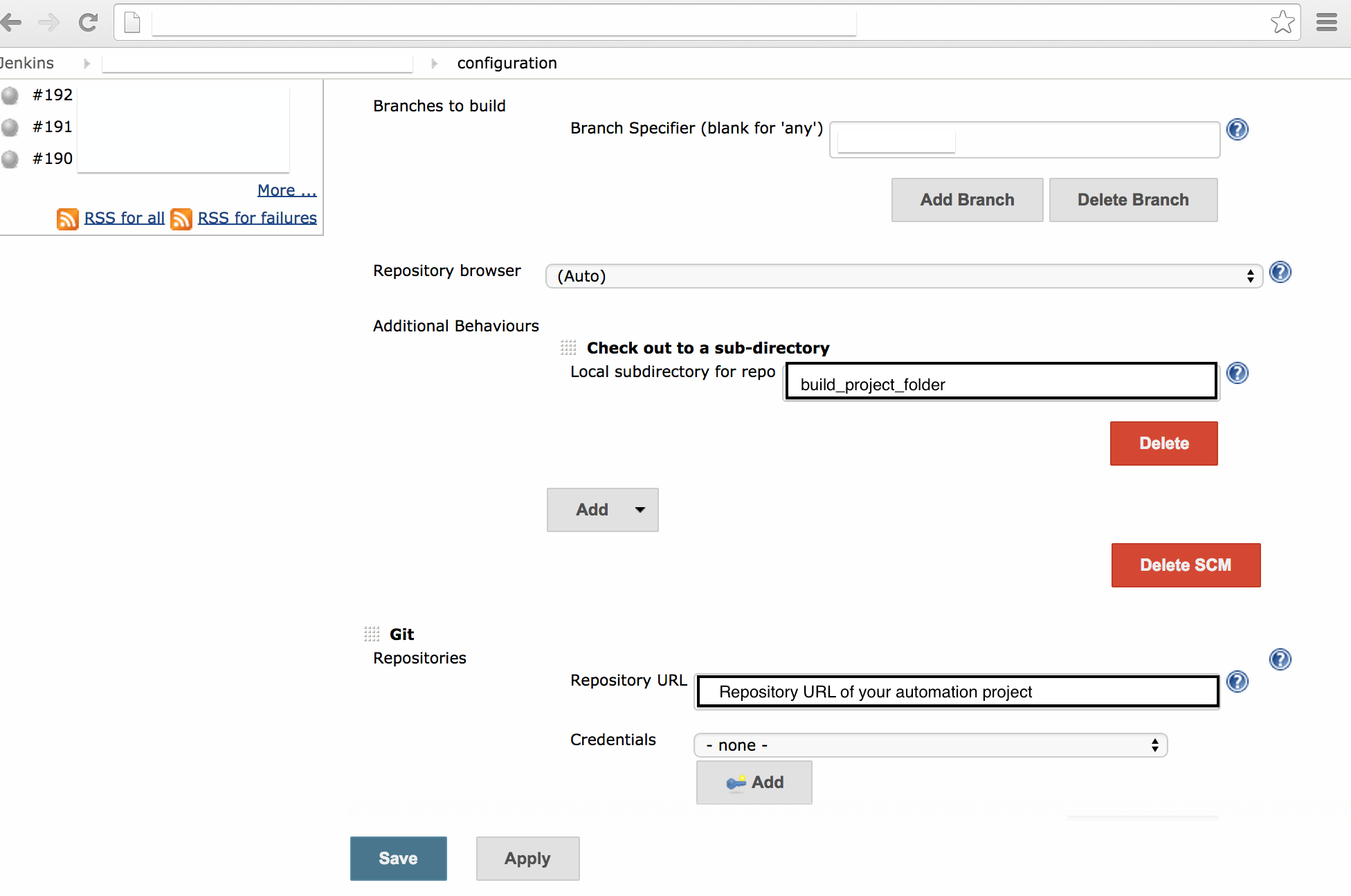
Third – Now you write the build app folder, where the build will be. After, you need to write the repository of your automation project and choose your credentials if you need one.

(That where you put your steps and features, again this is a example, maybe your calabash automation project is inside of the same repository of the app project, so you won’t need to add this second SCM)

page3

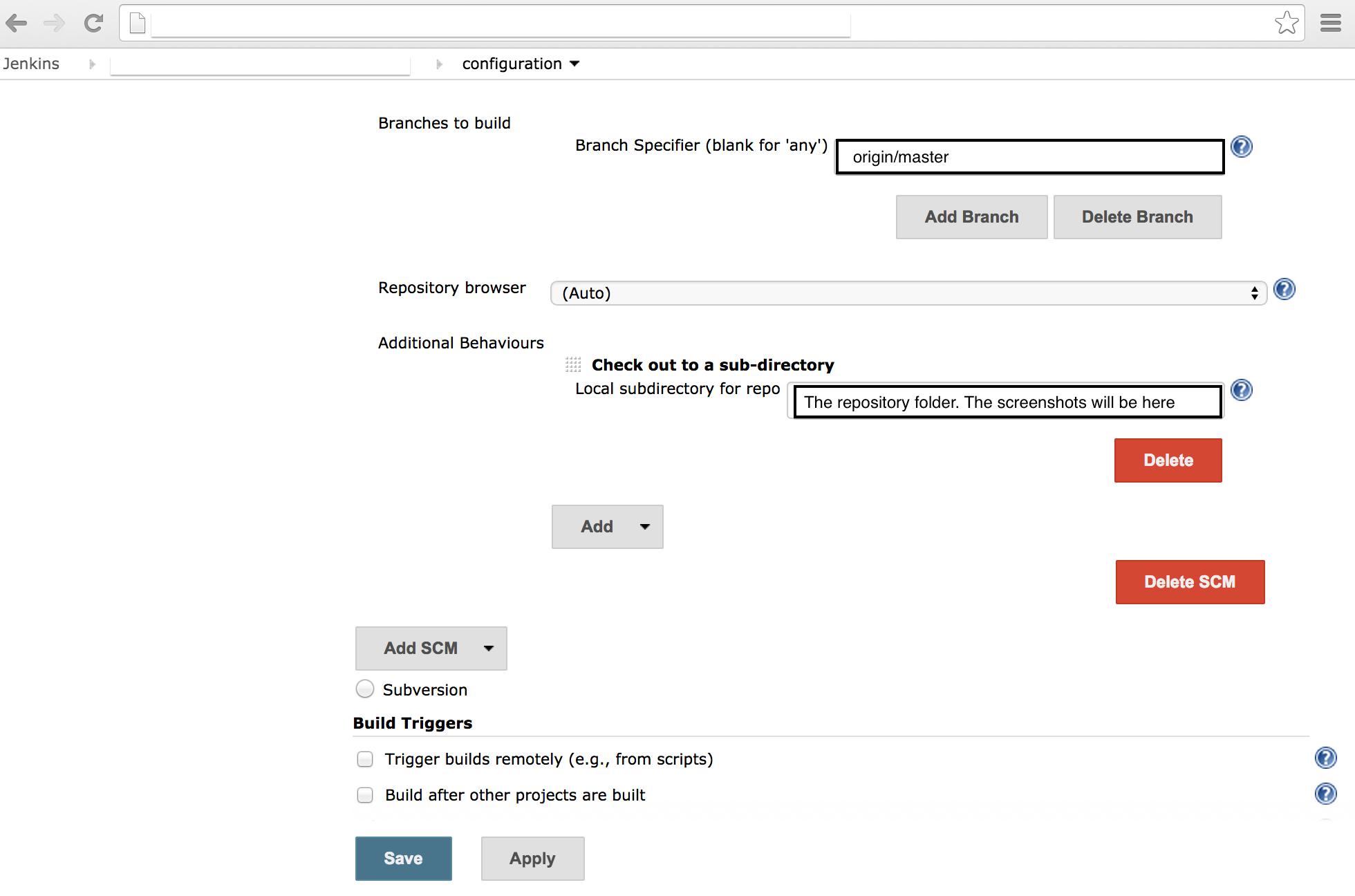
Fourth – Choose the branch of this SCM – calabash automation and the repository folder.

page4

Fifth – In this case we are building this job periodically everyday in the evening. You can schedule the build here. Follow the example and the instructions. If you want run this job after someone pushed to Github, just check the option “Build when a change is pushed to GitHub”.

In this field, you can write the script to pull, checkout and build the app from developers branch.

page5

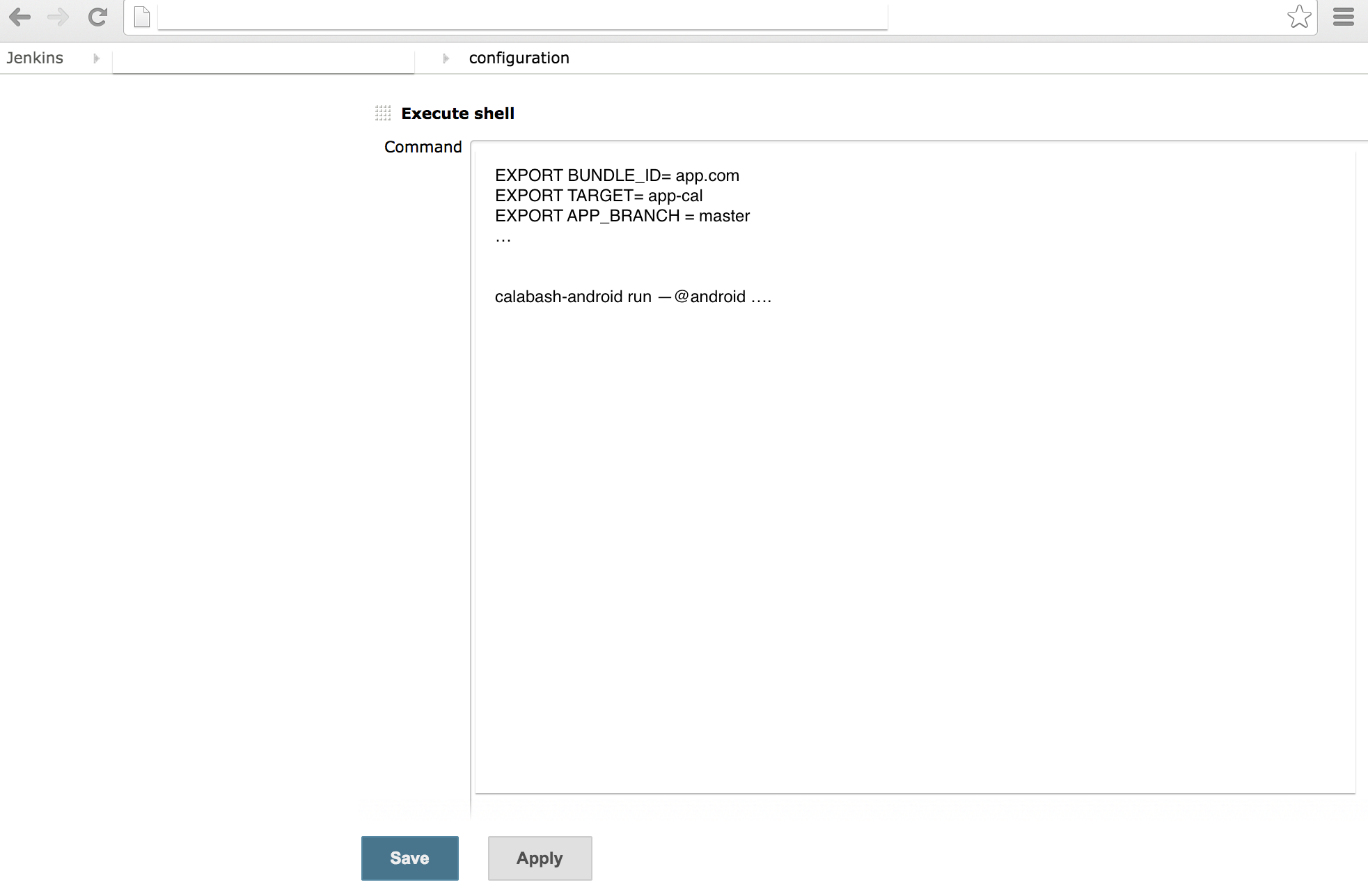
Sixth – Now you need to export the variables, as target, app_branch, bundle_id and everything. After you can write the command to run the calabash and the test.

page6

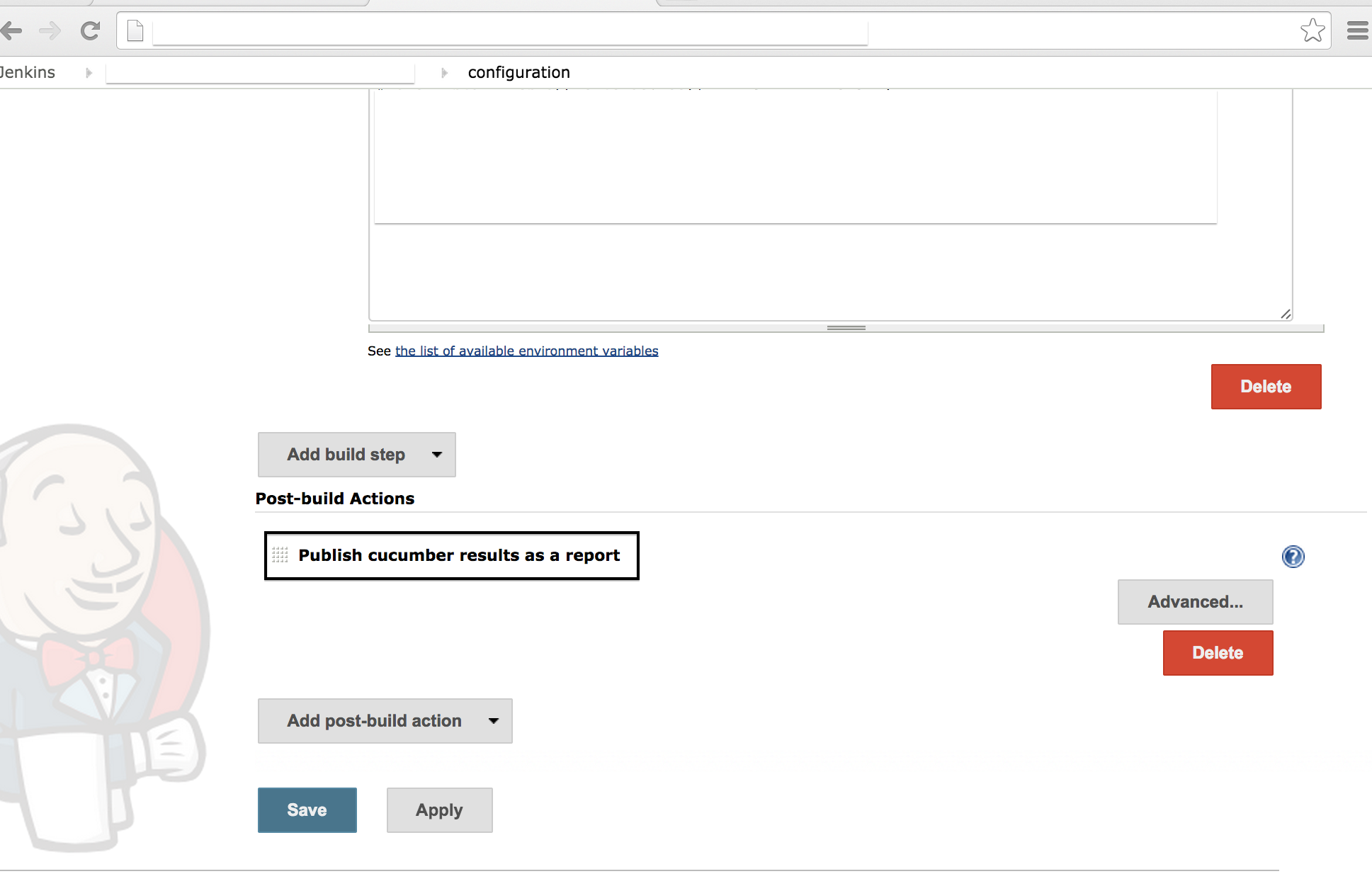
Seventh – In this step you can install a plugin of Cucumber and see the report with graphs and everything. Link of plugin: https://github.com/masterthought/jenkins-cucumber-jvm-reports-plugin-java

page8

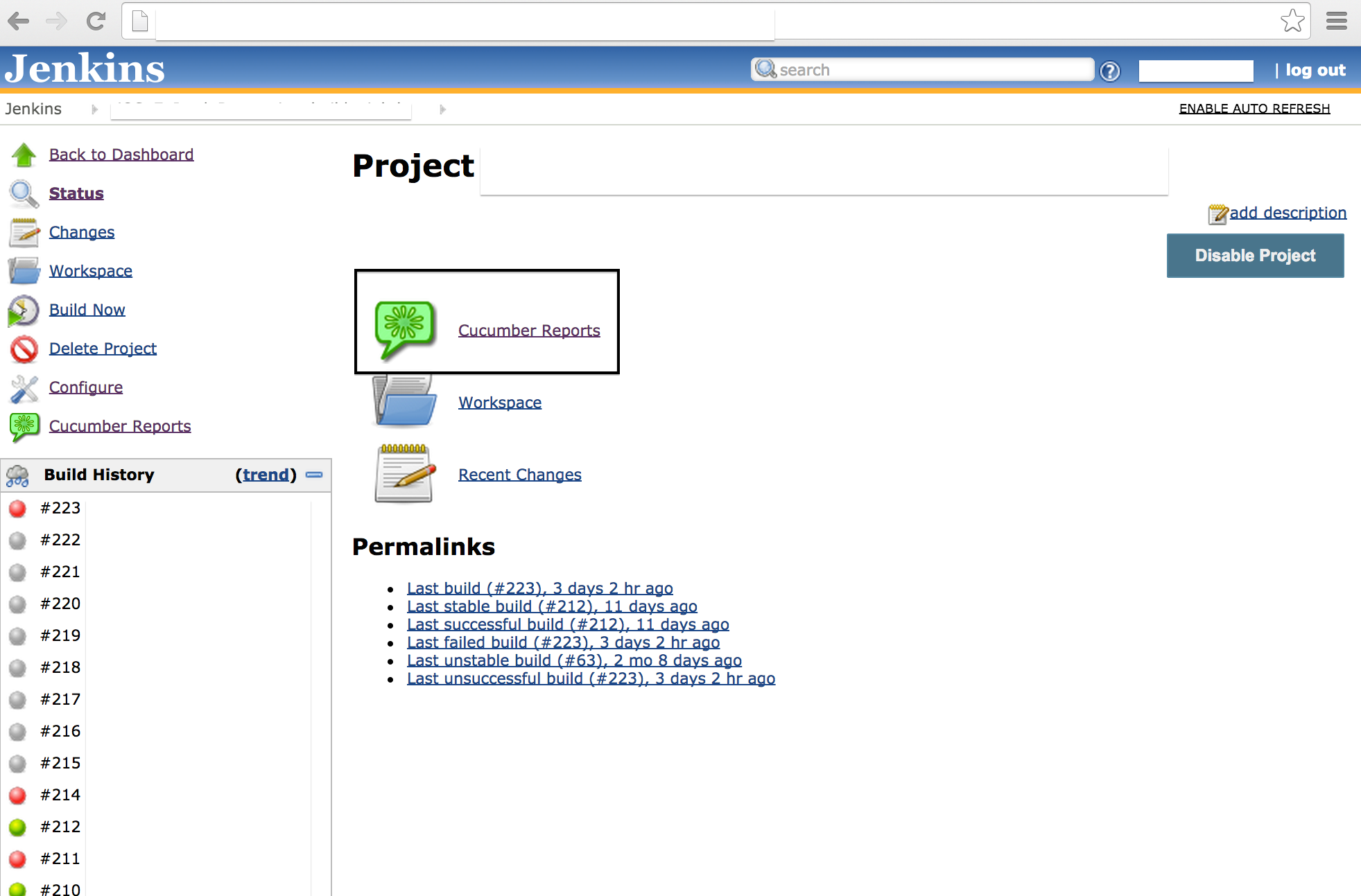
Eighth – After run the test, click on last build and on link Cucumber Reports.

page9

Ninth – You can see the report and how long is delaying each feature, how many scenarios of each feature failed and passed.

page10

If you have any question or suggestion just write below in the comments.

Thank you all !