How to create your tests with Protractor and cucumber

Hello guys, today I will post about how to do assertions when using Cucumber and protractor. If you don’t know what is a promise and how they work, I suggest read this link. WebDriver’s JavaScript API is entirely asynchronous and every command results in a promise. WebDriverJS uses a custom promise library with a promise manager called the ControlFlow. The ControlFlow implicitly synchronizes asynchronous actions, making it so you only have to register a promise callback when you want to catch an error or access a return value.

  • So, create a protractor.js in your project’s root folder:
'use strict';

var os = require('os');
var platform = os.platform();

var HOST = 'http://test.protractor.com';
var USER = 'protractor';
var PASS = 'test';

var chrome = {
 browserName: 'chrome'
};

var safari = {
 browserName: 'safari'
};

var firefox = {
 browserName: 'firefox'
};

var capabilities = [chrome];

// Enable Safari only on macos
if (platform === 'darwin') {
 capabilities.push(safari);
}

exports.config = {
 seleniumAddress: 'http://127.0.0.1:4444/wd/hub',
 specs: [
 'src/features/*.feature'
 ],
 multiCapabilities: capabilities,
 noGlobals: true,
 baseUrl: 'http://localhost:5000',
 framework: 'custom',
 frameworkPath: require.resolve('protractor-cucumber-framework'),
 resultJsonOutputFile: 'test-reports/protractor/protractor.json',
 cucumberOpts: {
 require: [
 'src/js/test/common.js',
 'src/js/test/steps/**/*.js'
 ],
 format: 'pretty',
 strict: true,
 tags: [
 '@smoke',
 '~@pending'
 ]
 },
 params: {

 credentials: {
 username: USER,
 password: PASS
 },

 endpoints: {
 authenticate_url: HOST + '/auth'
 }
 },

 //promise to get browserName
 onPrepare: function() {
 var protractor = require('protractor');
 var browser = protractor.browser;
 return browser.getProcessedConfig().then(function(config) {
 browser.browserName = config.capabilities.browserName;
 });
 }
};


  • Create your Feature file in: your_project_folder/src/features/login/login.feature
Feature: Login Page


@smoke
 Scenario: Login success
 Given I am on the login page
 When I input valid username and password
 Then I should be redirected to the management page


  • Common.js file which will contain the common libraries (You need install them first with npm install command): your_project_folder/src/js/test/common.js
'use strict';

// Configure chai & sinon
global.expect = require('chai')
 .use(require('sinon-chai'))
 .use(require('chai-string'))
 .use(require('chai-as-promised'))
 .use(require('expect-to-be-a-promise'))
 .expect;

global.sinon = require('sinon');


  • Create your step definition file in: your_project_folder/src/js/test/steps/login_steps.js
'use strict';

var LoginActions = require('../login_page/login_actions');
var LoginAssertions = require('../login_page/login_assertions');
var protractor = require('protractor');
var browser = protractor.browser;

var LoginPageSteps = function() {

var loginActions = new LoginActions();
var loginAssertions = new LoginAssertions();

this.Given(/^I am on the login page$/, function() {
    loginActions.getPage();
 });

this.When(/^I input valid username and password$/, function() {
    var credentials = browser.params.credentials;
    loginActions.login(credentials.username, credentials.password);
 });

this.Then(/^I should be redirected to the management page$/, function() {
    return loginAssertions.assertManagementPage();
 });

};

module.exports = LoginPageSteps;


  • Create your login elements (map repository for login page) file in: your_project_folder/src/js/test/login_page/login_elements.js
'use strict';

var protractor = require('protractor');
var element = protractor.element;
var by = protractor.by;

function LoginStateElements() {
  return {
    url: function() {
    return '/login';
  },
  username: function() {
    return element(by.model('credentials.username'));
  },
  password: function() {
    return element(by.model('credentials.password'));
  },
  submit: function() {
    return element(by.css('[type="submit"]'));
  },
  form: function() {
   return element(by.css('[ng-submit="form("test")"]'));
  }
 };
}

module.exports = LoginStateElements;


  • Create your login actions file in: your_project_folder/src/js/test/login_page/login_actions.js
'use strict';

var LoginElements = require('./login_elements');
var protractor = require('protractor');
var browser = protractor.browser;

function LoginStateActions() {

 var loginElements = new LoginElements();

 return {
  getPage: function() {
     browser.get(browser.baseUrl + loginElements.url());
  },
  login: function(username, password) {
     loginElements.username().click();
     loginElements.username().clear();
     loginElements.username().sendKeys(username);
     loginElements.password().click();
     loginElements.password().clear();
     loginElements.password().sendKeys(password);
     loginElements.submit().click();
  }
 };
}

module.exports = LoginStateActions;


  • Create your login assertions file in: your_project_folder/src/js/test/login_page/login_assertions.js
'use strict';

var LoginElements = require('./login_elements');

function LoginAssertions() {

 var loginElements = new LoginElements();

 return {
  assertManagementPage: function() {
     var form = loginElements.form();
     var submit = loginElements.submit();
     expect(submit.isEnabled()).to.eventually.be.false;
     return expect(form.isPresent()).to.eventually.be.true;
  }

 };
}

module.exports = LoginAssertions;


Chai Assertion Library to understand how to use expect to assert elements.

WebDriver API commands to understand what you can do with the elements, for example, check if is displayed, click, clear, get Title, etc.


Thanks To Raphael Bonnet, who has been working with me on this project. It’s great when you find such a good developer to work with and really work as a team trying to find the best for the project together (Even that I am still skeptical about protractor instead of Selenium xD ).
Promise Manager (Protractor – WebDriverJs)

Hey guys,

I have coded in Java, C# and Ruby since I’ve started work with Automation, so about 8 years ago. It’s my first time coding in Javascript for AngularJs pages and for those who are like me you need to know that if you are working with protractor or webdriverjs they return promises from all of its browser interactions, which could lead to some confusing behaviour.


What is the promise manager ?

Protractor and webdriverjs are asynchronous and every result returns a promise. They use a custom promise library called ControlFlow, which implicitly synchronizes asynchronous actions, making it so you only have to register a promise callback when you want to catch an error or access a return value. The promise module coordinates the flow of the asynchronous tasks.

This Promise Manager ensures that calls to the browser are run in sequence, and you only need to worry about dealing with the Promises when you wish to do something with data from the page.

In practice, this means that you can ignore the returned promises while interacting with the page.


So, instead of:


driver.get('https://azevedorafaela.wordpress.com')
 .then(function() {
   return driver.findElement({class: '.searchtip'});
 })
 .then(function(search) {
   return search.sendKeys('webdriver');
 })
 .then(function() {
   return driver.findElement({class: '.button'});
 })
 .then(function(button) {
   return button.click();
 });


You can have:

 driver.get('https://azevedorafaela.wordpress.com');
 driver.findElement({class: '.searchtip'}).sendKeys('webdriver');
 driver.findElement({class: '.button'}).click();


The trick part is when you want to extract the values from the page to do an assertion for example:

 driver.get("https://azevedorafaela.wordpress.com");
    driver.getTitle().then(function(pageTitle) {
        assert.equal(pageTitle, "Rafaela Azevedo");
 });


You can find more information on the links below. Thank you ! See you next weekend 🙂


Resources: http://blog.scottlogic.com/2015/03/04/webdriverjs-and-promises.html

https://github.com/SeleniumHQ/selenium/wiki/WebDriverJs

http://seleniumhq.github.io/selenium/docs/api/javascript/module/selenium-webdriver/lib/promise.html


Useful Adb commands for tests

  • Start and stop server to interact with the device:
adb start-server
adb kill-server
  • List of connected devices:
adb devices
  • Print the current log to the console:
adb logcat
  • Pull files from the device:
adb pull [device file location] [local file location]
  • Create a screenshot:
adb shell screencap -p /sdcard/screenshot.png
  • Create a video:
adb shell screenrecord /sdcard/Bug1234Video.mp4
  • Install/Uninstall apps:
adb install com.myAppPackage
adb uninstall com.myAppPackage
  • Send 10.000 random events on the real device. Use the parameter -s (seed) to execute the same commands over and over again:
adb shell monkey -p com.myAppPackage -v 10000 -s 100
  • Start an activity:
adb shell am start -a android.intent.action.VIEW
  • Open the shell:
adb shell
  • Remount the device with the right permissions:
adb remount
  • Remount, delete the app and reboot the tablet:
adb remount && adb shell rm /system/app/MyApp.apk && adb shell reboot

Thank you guys ! See you next week !

Resources: http://adventuresinqa.com/2016/04/19/powerful-adb-commands/

Sending request using a token with node.js

Hey guys, today I will post about how to use a token when sending your requests in node.js. As I am using these requests for my automated tests with cucumber.js, I am going to post the step definition, too.


The class with the API requests:


'use strict';

var request = require('sync-request');
var protractor = require('protractor');
var browser = protractor.browser;
var sprintf = require('sprintf-js').sprintf;

function API() {

 //Initialise the variables
 var token = null;
 var total = null;
 var id = null;

 return {
  //Authenticate request where it gets the token to be used after
   authenticate: function() {
   var response = request('POST', getAuthURL(), {
   headers: {
    'Content-Type': 'application/x-www-form-urlencoded'
   },
   body: getAuthBody()
 });

 var json = parseResponse(response);
 if (response.statusCode !== 200) {
  throw Error('Unable to authenticate: ' + response.statusCode);
 }

 token = json.token_auth;
 console.log('Authenticated with token:[' + token + ']');

 return token;
 },

 //Get the token from the authenticate request
 create: function() {
  var response = request('GET', getCreateURL(), {
  headers: {
  'Content-Type': 'application/json',
  'Auth-Token': token
  },
  body: getCreateBody()
 });

   var json = parseResponse(response);
   if (response.statusCode !== 200) {
    throw Error('Unable to create:' + response.statusCode);
   }

   //Get the nodes from the response, data is an array
   total = json.total;
   id = json.data[0].id;
   console.log(id);
   console.log('Created:[' + total + ']');

    return json;
   },

   //Parsing the response
   function parseResponse(response) {
    return JSON.parse(response.getBody('utf8'));
   },

   //Returning the body with the credentials from protractor.js config
   function getAuthBody(response) {
    return 'user=' + browser.params.credentials.username +
 '&pass=' + browser.params.credentials.password;
   },

   //Write the body to create the user and convert it
   function getCreateBody(response) {
   return JSON.stringify({
    deviceId: '123456789',
    name: 'Rafaela',
    description: 'Description',
    cities: [{
     'label': 'London'
    }, {
     'label': 'Oxford'
    }]
   });
 },

   //Get address and then endpoint from the protractos.js
   function getAuthURL() {
    return getPath() + '/' + browser.params.endpoints.authenticate;
   },

   //Get the host and path, easier to maintain
   function getPath() {
    return browser.params.host + '/' + browser.params.path;
   },

   function getCreateURL() {
    return getPath() + '/' + browser.params.endpoints.create;
   }

}

module.exports = API;


  • Authenticate request where it’s getting the token to be used in the Create request.


Your protractor.js with protractor and cucumber configs:

'use strict';

 var os = require('os');
 var platform = os.platform();

 //Browsers that you will run the automation
 var chrome = {
  browserName: 'chrome'
 };

 var safari = {
  browserName: 'safari'
 };

 var firefox = {
  browserName: 'firefox'
 };

 var capabilities = [chrome];

 // Enable Safari only on macos
 if (platform === 'darwin') {
 capabilities.push(safari);
 }

exports.config = {
 seleniumAddress: 'http://127.0.0.1:4444/wd/hub',
 //Point to the features path
 specs: [
 'src/features/*.feature'
 ],
 multiCapabilities: capabilities,
 noGlobals: true,
 baseUrl: 'http://localhost:5000/',
 framework: 'custom',
 frameworkPath: require.resolve('protractor-cucumber-framework'),
 cucumberOpts: {
 //Point to the step definitions and support classes
 require: 'test/steps/**/*.js',
 //Format for the cucumber report
 format: [
 'json:test-reports/cucumber-json/cucumber.json',
 'pretty'
 ],
 strict: true,
 //Tags filtering the scenarios
 tags: [
  '@regressionTests',
  '~@pending'
  ]
 },
 //Params to pass to your tests, username, passwords, etc.
 params: {
  credentials: {
   username: 'user',
   password: 'Password123'
  }
 },
 //Your site address
 host: 'http://www.testSite.com',
 //Path to use in the requests
 path: 'rest',
 //Endpoints for the requests
 endpoints: {
   authenticate: 'auth',
   create: 'create/user'
  }
 }
}
};


Your step definition with the step and calling the api functions:

'use strict';

var API = require('../api');

 var SupportSteps = function() {

 var api = new API();

 this.Given(/^I have created the user$/, function() {
       //Calling the authenticate first, you will get the token to use it
       api.authenticate();
       api.create();
     });
 };

module.exports = SupportSteps;

  • So here, you have the step definition that calls the functions to authenticate first and then to create the user after using the token.

Thank you guys ! See you next weekend 🙂

How to post a JSON request in Node.js

Hi guys, today I will post a code snippet to send a post request to the server in Node.js. This could be useful when testing integration between two different websites. For example, when you need to create/update something on a backoffice and you need to check the details on a front-end website.

  • First you need to install this request module with npm:
npm install sync-request


  • After you just need to create the js file with the code:
'use strict';

var request = require('sync-request');

var APIMounts = function() {

 var client = {
 id: '123456',
 name: 'Test Client',
 description: 'This client is used for automation',
 age: '20 years',
 city: 'London',
 interests: [{ 'music': 'Rock' }]};

 var details = {
 method: 'POST',
 url: 'http://google.com/rest/client',
 headers: {
 'Content-Type': 'application/json'
 },
 body: JSON.stringify(client)
 };

 function callback(error, response, body) {
 if (!error && response.statusCode === 200) {
 return JSON.parse(body);
 }
 }
 request(details, callback);
};

module.exports = APIMounts;


  • client is a variable that will need be formatted
  • interests contains an array of strings with key:value
  • url is the host
  • body is the client variable JSON formatted


Resources:

http://blog.modulus.io/node.js-tutorial-how-to-use-request-module

Research – QA process

Hey guys, I sent a form with some questions about the QA process in different corporations and I will post the result here, it’s interesting to know how the majority is working nowadays 🙂

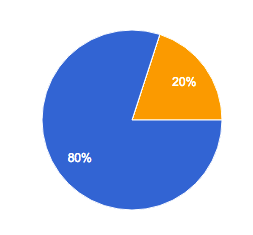
  • Which moment do you create your scenarios (validation tests) ?

Screen Shot 2016-06-04 at 16.45.10

  • 80% – Create after “In conversation” when the ticket is Ready for development 
  • 20%  Create when the ticket is in development
  • 0% Create when the ticket is Ready for QA


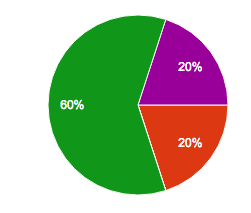
  • As a tester have you been involved in meetings about business rules of a ticket or just the PO ?

Screen Shot 2016-06-04 at 17.16.03

  • 20% – Just the PO is involved and I need to read the tickets to understand the business rules
  • 60% – I take part with devs and after we point the ticket
  • 20% I take part since the ticket’s creation with the PO


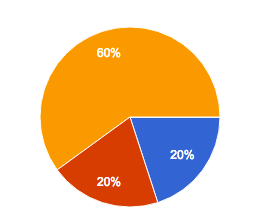
  • Do you have a brief explanation or demo about what the ticket is about ?

Screen Shot 2016-06-04 at 17.20.21

  • 0% – I have a demo before test the ticket
  • 0% – PO explains to me what the ticket is about
  • 20% – Dev explains to me what the ticket is about
  • 60% – I have a meeting in the beginning of the sprint to know what the ticket is about
  • 20% – PO and dev explain to me the ticket


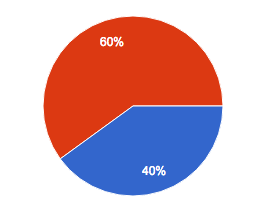
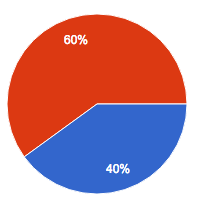
  • When you do the regression tests, do you test the integration between the platforms ?

Screen Shot 2016-06-04 at 17.27.49

  • 40% – I test the integration between the related platforms
  • 0% – Other
  • 60% – I test just the platform which will be released


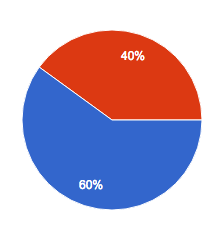
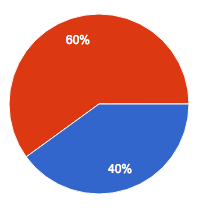
  • Have you ever performed the regression tests before the tickets be resolved ?

Screen Shot 2016-06-04 at 17.31.01

  • 60% – Yes
  • 40% – No


  • Do you have a staging environment to test each single ticket ?

Screen Shot 2016-06-04 at 17.33.11

  • 40% – No
  • 60% – Yes


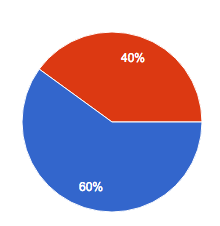
  • Do you have an UAT environment to test the group of tickets of each release ?

Screen Shot 2016-06-04 at 17.35.18

  • 40% – Yes
  • 60% – No


  • When you have tickets to be tested together…

Screen Shot 2016-06-04 at 17.36.57

  • 60% – You are notified by the developer
  • 0% – Other
  • 40% – It’s written on the ticket to be tested together with another(s) ticket(s)


How to set a list of jmeter properties with a list of jmeter variables

Hey guys, today I will post about a quick code to set properties in runtime from jmeter variables.
Where you could use this ?
If you have a list after extract with json path extractor and you want to set a property to use in another thread group, this could be useful.
For example, I will get the serials of a list extracted with json path extractor.
– Create a beanshell script with:
//Get the count of the serials
String countSerials = vars.get("serials_matchNr");

// create a for to create a property for each serial variable
for(int i=1;i<Integer.parseInt(countSerials);i++){

   //set each property + index with the variable of each serial in the list
   ${__setProperty("serials_"+i,String.valueOf(vars.get("serials_"+i)))};

}
Thank you guys ! See you next week 🙂

Comparing @FindBy and Map repository approaches

What is this @FindBy ?

It’s an annotation on Selenium that organize the elements and using the PageFactory, these WebElements are usually initialised when a Page Object is created. It’s a best practice of Page Object Models, but more than this is a way to let your group of elements well-structured and just call when you need it.
The @FindBy annotation is used to locate one or more WebElements using a single criterion. For example:

@FindBy(id = "id_element")
private WebElement element;


To create the instance for these elements, you can use:

PageFactory.initElements(driver, this);


For the cases you want to search for all the given criteria, you can use @FindBys and for the ones you want to search for at least one of the given criteria, @FindAll

So, for example:

Using @FindAll:

@FindAll({
    @FindBy(name = "username"),
    @FindBy(name = "password")
})
private List<WebElement> loginfields;

The loginfiends list should contain the element with name = username and the element that contains name = password, 2 elements. If you use @FindBys it wouldn’t bring anything, since there is no element with two names (both of the criteria).

So, this structure makes the code much easier to read. You should place the @FindBy in the beginning of your page object class.

What is the Object repository ?

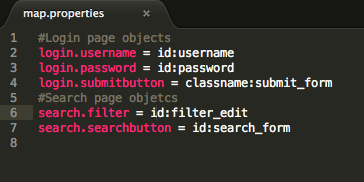
It could be a properties/text file where you place all the locators for the elements and you use selenium to call each one. The property file contains a collection of key-value pairs, with the key being a logical name identifying the object and the value containing unique objects properties used to identify the object on a screen. You can use this concept of Object Repository for any language, not only Java and not only with Selenium.

It contains the key of the element and the value to find it. The corresponding value consists of two parts: the attribute type used for uniquely identifying the object on screen and the corresponding attribute value.

Screen Shot 2016-05-21 at 20.05.19

After this, you need to create a class to get the elements . For example:

Screen Shot 2016-05-21 at 20.34.38

As you can see, objects can be identified using a number of different properties, including object IDs, CSS selectors and XPath expressions.

Now you can use these in your scripts to execute any scenario. You just need to call the Map repository and get the locator key.

Screen Shot 2016-05-21 at 20.42.57

So, in the end you just need to update this properties file with the new locators.

The aim of both of the methods is to reduce the maintenance time when you have new locators. If you are using Selenium, I suggest you to use @FindBy since it’s a good practice and the framework provides this option, but you don’t have this for all the test frameworks in the market, for those you can have a map repository.

Cheers guys, see you next weekend 🙂


Resources:

http://www.ontestautomation.com/findby-strategies-for-selenium-explained/

http://www.ontestautomation.com/building-and-using-an-object-repository-in-selenium-webdriver/

Test Automation Obstacles On Demand

Hey guys, today I will post a webinar that I’ve watched last week. It’s about the challenges of test automation:

  • Collaboration
    • Daniel explains that is easy to ask developers to write test automation and for this reason, it’s better to choose the same language of the developers
    • Assign an owner for the digital test coverage but keep the conversation open to all teams
  • Tools
  • Reports
  • Flows
  • Time
  • False negatives
  • Stability
    • Object identification is the key for robust automation
    • Assure proper Error handling
  • Security
    • Networks
    • Orientation
    • Location
    • Notifications
    • Events
    • Device events

Here is the video, but you can have a look on the slides on the link below:

Sourcehttp://info.perfectomobile.com/Overcoming-Test-Automation-Obstacles-On-Demand-Replay.html?mkt_tok=eyJpIjoiTkRKaVlUY3lZbVk0TTJaaiIsInQiOiJZV2w2VWtxMkk0a214d29ETmNvaFpodENQeHllTUcrMkYycU05bEV1WmhIYzQyUTBhS3NoRjA5TFFuTTN6S3NcL1ZPaDQ1YWtBNmRSZDRcLyt4eVdyVk5ES1FBS0MrWVwvSU5WUGZVZ0VwVGI1ST0ifQ%3D%3D