Environment variables, BuildConfig, Gradle.properties and Android Studio

Hello guys,

Today I will post some simple steps to have some environment variables in your android studio project. So, if you have some confidential data to use in your android tests, you can hide the password, username or if you just want to have some environment variables separated from your project, just follow these steps:

So, let’s start:

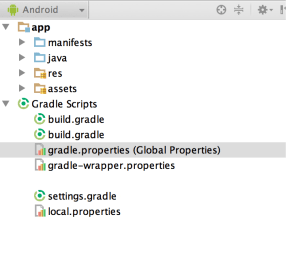
Screen Shot 2015-09-17 at 21.58.28

  • In your gradle.properties create the environment variables (You can find this file inside of your Android Studio project or in your /Users/Your Username/.gradle)
testUsername="username"
testPassword="password"
  • In your build.gradle file (Remember, you can have many build.gradle file, so first try to find the one that you want to share with all projects or the one which you will use only in your project > buildTypes > debug, as it is showed in the structure below). The “USERNAME” and “PASSWORD” will be the variables in your code and the testUsername and testPassword should be the same variable which you are using in your gradle.properties file (above).
android {
buildTypes {
  debug {
    ...
    buildConfigField "String", "USERNAME", testUsername
    buildConfigField "String", "PASSWORD", testPassword
   }

  release {
   ...
    }
  }
}
  • After this, you need to sync your gradle.
  • And in your code, just call the variables like this:
BuildConfig.USERNAME
BuildConfig.PASSWORD

I am using gradle 2.4 and androidStudio 1.3.2.

Thank you, see you next week 🙂

Resources:

http://examples.javacodegeeks.com/core-java/gradle/gradle-properties-build-configuration-example/

http://www.rainbowbreeze.it/environmental-variables-api-key-and-secret-buildconfig-and-android-studio/

How to install Espresso and Cucumber in Android Studio

You can download a sample project that is already configured and try first: https://github.com/cucumber/cucumber-jvm/tree/master/examples/android/android-studio/Cukeulator

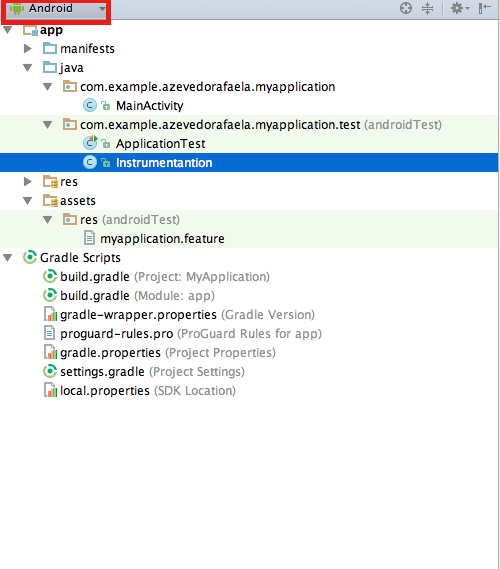
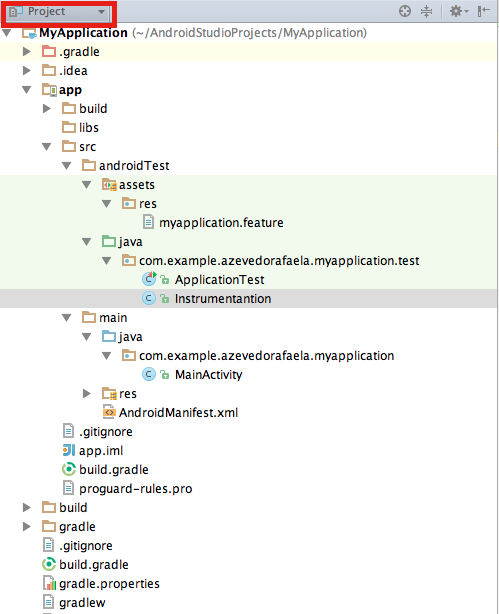
  • The structure of your project should be like this:

On Android View:

Screen Shot 2015-09-12 at 15.14.59

On Project View:

Screen Shot 2015-09-12 at 15.14.46


  • Now, open the build.gradle of your app and write these dependencies:
dependencies {
 androidTestCompile 'com.android.support.test.espresso:espresso-core:2.2'
 androidTestCompile 'com.android.support.test:testing-support-lib:0.1'
 androidTestCompile 'info.cukes:cucumber-android:1.2.4'
 androidTestCompile 'info.cukes:cucumber-picocontainer:1.2.4'
}
  • I had some problems with the version of java, if you have the same problem just update your java or downgrade/upgrade the version of the plugin which is incompatible.
  • In your build.gradle you will need to write more these configs. Change the name of your application and the package of the runner, following the structure of your project and sync your build.gradle file.
android {
 defaultConfig {
 testApplicationId "com.example.azevedorafaela.myapplication"
 testInstrumentationRunner "com.example.azevedorafaela.myapplication.test.
Instrumentation"
 }
   sourceSets {
     androidTest {
        assets.srcDirs = ['src/androidTest/assets']
     }
   }
} 
  • In your Feature file you an write your scenario like this:
Feature: Test

Scenario: Espresso with cucumber test
Given I have my app configured
When something happens
Then I should see xx on the display
  • In your Instrumentation class:
package com.example.azevedorafaela.myapplication.test;
import android.os.Bundle;
import android.support.test.runner.MonitoringInstrumentation;
import cucumber.api.android.CucumberInstrumentationCore;
public class Instrumentation extends MonitoringInstrumentation {
private final CucumberInstrumentationCore instrumentationCore = new 
CucumberInstrumentationCore(this);
@Override
 public void onCreate(final Bundle bundle) {
 super.onCreate(bundle);
 instrumentationCore.create(bundle);
 start();
 }
@Override
 public void onStart() {
 waitForIdleSync();
 instrumentationCore.start();
 }
}
  • In your Steps file:
package com.example.azevedorafaela.myapplication.test;

import android.test.ActivityInstrumentationTestCase2;

import com.example.azevedorafaela.myapplication.MainActivity;

import cucumber.api.CucumberOptions;
import cucumber.api.java.en.Given;
import cucumber.api.java.en.Then;
import cucumber.api.java.en.When;
import com.example.azevedorafaela.myapplication.R;
import static android.support.test.espresso.Espresso.onView;
import static android.support.test.espresso.action.ViewActions.click;
import static android.support.test.espresso.assertion.ViewAssertions.
matches;
import static android.support.test.espresso.matcher.ViewMatchers.withId;
import static android.support.test.espresso.matcher.ViewMatchers.withText;

@CucumberOptions(features = "features")
public class MainActivitySteps extends ActivityInstrumentationTestCase2
<MainActivity> {

    public MainActivitySteps(){
        super(MainActivity.class);
        assertNotNull(getActivity());
    }

    @Given("^I have my app configured$")
    public void I_have_my_app_configured() {
    }

    @When("^something happens$")
    public void something_happens(final char op) {

    }

    @Then("^I should see xx on the display$")
    public void I_should_see_xx_on_the_display(final String s) {
    }
}


Now you can start write your espresso code inside of each step. To run your test you need to:

  • In your terminal, open your project folder and run:
gradle --parallel :app:assembleDebugTest
  •  Now you need istall the apk in your device/simulator:
adb install -r app/build/outputs/apk/app-debug.apk
  • Check if your app is installed. Should display the instrumentation of your app
adb shell pm list instrumentation
  • To run the tests with gradle:
gradle connectedCheck
  • To run the tests with adb:
adb shell am instrument -w com.example.azevedorafaela.myapp
lication/com.example.azevedorafaela.myapplication.test.Instrum
entation
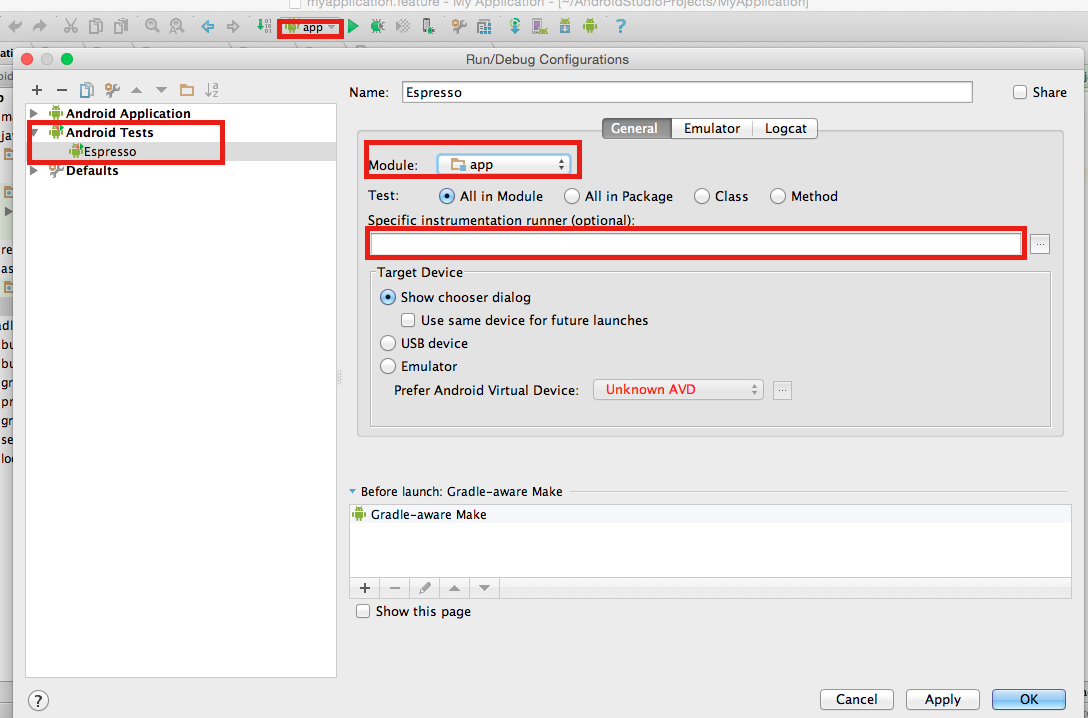
  • To run your tests via android configurations:
    1. Open your run configurations
    2. Create an androidTests
    3. Give a name to this config
    4. Select your module
    5. Don’t write anything on the instrumentation field. (We already configured this in our build.gradle)
    6. Ok.

Screen Shot 2015-09-12 at 15.39.22


Now you can run your cucumber with espresso tests. I hope this “tutorial” helps you as helped me to install everything on my project.

Thank you guys ! See you next week 🙂

10 Steps to setting up the QA Area

Hello guys, today I will post about some steps that you can follow to create the QA area from the scratch.

1 – Make questions like:

  • Do you have any written scenarios ?
  • Who is writing the scenarios and in what phase ?
  • QA team will need create its own scenarios, what phase may the team do that ?
  • Who will need to look the scenarios, just QA and dev area ?
  • Who will run the tests DEV and QA only ?
  • How the application is working ?
  • What are the critical scenarios ? Like, what are the scenarios which will crash the functions/app/process ?
  • What are the most used scenarios (Like create an account…) ?
  • What are the scenarios which are more unstable, like if you change a simple thing you will need to test this scenario every time ?
    • What are the most repetitive tests ?
  • Do you need run the regression everyday ? before every release ? (regression tests, exploratory tests, monkey tests, stress tests, performance tests) every time after a push ? (smoke tests)
  • Do you have a QA environment ?
  • If you are in a mobile/web project, remember to make these questions:
    • What are the most used devices/browsers/OS ?
    • What are the most unstable devices/browsers/OS ?
    • What are the most used versions on these browsers/OS ?
    • What are the most unstable versions on these browsers/OS ?
  • If you are in a mobile project:
    • The app is hybrid, native or web app ?
  • If you are in a web project:
    • Is this site responsive ?
  • Do you have a process of QA, like SCRUM, Kanban ?
  • If you find a bug in a task, do you return the task or create the bug to be fix separately ?

2 – Understand what will be first priority and until where you will reach (Like performance tests, integration ui tests, etc…), so you can have a big picture of the project

3 – Remember that if you are using BDD, it is just 3 layers (Don’t expose your code)

4 – Decide what are the scenarios that must be in the regression (Priority).  What are the most repetitive tests ?

5 – Use tags for all the type of scenarios, like smoke, regression, iOS, android, manual. Even manual tests should be in the features inside the automation project

6 – Don’t use too many complex steps in your scenarios

7 – Try to re-use steps so you don’t need waste time

8 – Use examples

9 – Regression tests – Automated tests

  • Choose the tool, do a POC with different frameworks
    • On this POC, choose the most simple and important scenario (E.g. Create an account)
  • Considerate the language which the developers are using (You never know when you will need help)
  • Distribute the right level of tests between unit (70%), integration (20%) and manual tests (10%) – new functions
  • Include the Automation in your development
  • Decide if you need to create the automation project in the same or separated project
  • Use CI since the beginning
  • Decide what must to have in the report
  • Choose a good report from the beginning
  • Structure of Scripts. Create or follow a Code Style Guideline

10 – Form a team of automation and equality the level of knowledge. Make some meetings to prepare people in your team to use the tool with wisdom.

I think it’s pretty much this. Sorry guys if I forgot something… If I remember anything else I will update here. Thank you ! Feel free for comments and your opinion always ! See you next week !

Open your application with CodedUI and C#

Hello guys, I will post a snippet code which you can use to open your Desktop Windows Application and start your automated test. You can see the code on my github account too. Do not forget to change the path of your application and maybe the timeout to load the application.


using System;
using System.Diagnostics;
using Microsoft.VisualStudio.TestTools.UITesting.WinControls;
using Microsoft.VisualStudio.TestTools.UITesting.Playback;
using System.Windows.Forms;

namespace ProjectName
{
	public class Application{

	        public static void Open()
	        {
	            System.Diagnostics.Process proc = new System.Diagnostics.
Process();
	            proc.EnableRaisingEvents = false;
	            proc.StartInfo.FileName = "C:\\Users\\yourUser\\AppData
\\Roaming\\Microsoft\\Windows\\Start Menu\\Programs\\UI.appref-ms";
	            try
	            	{ 				
	             	   proc.Start();
			   WaitApplicationLoad();
			}
 		    catch (Exception e)
	             	{
	                   MessageBox.Show(e.Message);
	               	}
	        }

	        public static bool WaitApplicationLoad(){
	        	WinButton button = new WinButton();
			while(!button.WaitForControlExist())
			{
				PlayBack.Wait(5000);
			}
	        }	
	}
}


Why are you using Playback instead of the Thread.Sleep ?

  1. There is PlaybackSettings.ThinkTimeMultiplier which you can modify your sleep.  By default this variable is 1 but you can increase\decrease it to change the wait time all over the code.  For example, if you are specifically testing over slow network (some other slow performance case), you can change this variable at one place (or even in the configuration file) to 1.5 to add 50% extra wait at all places.
  2. Playback.Wait() internally calls Thread.Sleep() (after above computation) in smaller chunks in a for-loop while checking for user cancel\break operation.  In other words, Wait() lets you cancel playback before the end of the wait whereas sleep might not or throw exception.

I’ve found this code to open the application, but to be honest it’s a recorded code, which means that it’s generated automatically when you are recording the manual clicks on your application. I don’t recommend because with the recording comes a lot of trash code. But you can change the names and remove the trash of the code anyway.


   public class UISwitcherProDesktopTPWindow : WinWindow
    {

        public UISwitcherProDesktopTPWindow()
        {
            #region Search Criteria
            this.SearchProperties[WinWindow.PropertyNames.Name] = 
"Application Name";
            this.SearchProperties.Add(new PropertyExpression(WinWindow.
PropertyNames.ClassName, "WindowsForms10.Window", 
PropertyExpressionOperator.Contains));
            this.WindowTitles.Add("Application Desktop");
            #endregion
        }
    }


Thank you guys, it’s just this for today. See you next week 🙂


References:

https://github.com/rafaelaazevedo/CodedUI/blob/master/OpenApplication.cs

https://social.msdn.microsoft.com/Forums/en-US/a42cf655-e202-4bd4-82e2-036d7015cab5/how-do-i-make-codedui-wait-for-application-to-fully-load?forum=vsautotest

https://social.msdn.microsoft.com/Forums/en-US/a2a0d838-c55e-4304-a508-b66f79f9da69/waitforcontrolexist-returns-false-event-if-control-available-on-screen?forum=vsautotest

http://blogs.msdn.com/b/gautamg/archive/2010/02/12/how-to-make-playback-wait-for-certain-event.aspx

Orthogonal Array Test

What is ?
It’s used for small number of inputs, but with exhaustive number of possibilities. It’s a black box testing with systematic and statistics techniques so, you don’t need to have the knowledge of the implementation of the system. The main aim is maximize the coverage by comparatively lesser number of test cases

Orthogonal arrays can be applied in user interface testing, system testing, regression testing, configuration testing and performance testing.


What are the benefits ?

Remember Pairwise? So, the benefits are the same, you will have a precisely test. 100% of Orthogonal Tests implies 100% of Pairwise.

  • Precise tests
  • Generate TestCases more quickly and cheaply
  • Increase coordination among the team
  • Easy for managers measure the team’s performance
  • Make the analysis simple
  • Isolate defects


Why don’t use it ?

Well, as any other technique we can find some negative points:

  • Testing will fail if you fail to identify the good pairs
  • Probability of not identifying the most important combination which can result in losing a defect
  • This technique will fail if you do not know the interactions between the pairs
  • Applying only this technique will not ensure the complete coverage
  • It can find only those defects which arise due to pairs, as input parameters

So, you need to choose wisely because not all the applications will suit in this technique, this depends of the behaviour of your application. You need to measure the priority points of the project as well, like if you want to cover 100% of the tests of cover a good part of the tests and save a lot of time…


How to use it ?

  1. Identify the independent variables. These will be referred to as “Parameter x”
  2. Identify the values which each variable will take. These will be referred as “Test Case x”
  3. Search for an orthogonal array that has all the factors from step 1 and all the levels from step 2
  4. Map the factors and levels with your requirement
  5. Translate them into the suitable test cases
  6. Look out for the left over or special test cases (if any)


Examples:

If we have 3 parameters, each can have 3 values then the possible Number 
of tests using conventional method is 3^3 = 27
While the same using OAT, it boils down to 9 test cases.

Screen Shot 2015-08-19 at 18.14.37

The array is orthogonal, because all possible pair-wise combinations 
between parameters occurs only once.
The given L9 Orthogonal Array assess result of test cases as follows:

Single Mode Faults - Single mode faults occur only due to one parameter. 
For example, in above Orthogonal array if test cases 7, 8 and 9 show error
, we can expect that value 3 of parameter 1 is causing the error. 
Likewise we can detect as well as isolate the error.

Double Mode Fault - Double mode fault is caused by the two specific 
parameters values interacting together. Such an interaction is a 
harmful interaction between interacting parameters.

Multimode Faults - If more than two interacting components produce the 
consistent erroneous output, then it is a multimode fault. 
Orthogonal array detects the multimode faults.


As always, if you have any suggestion or question please feel free to comment below.

Thank you ! See you next week 🙂


References:

http://www.tutorialspoint.com/software_testing_dictionary/orthogonal_array_testing.htm

http://www.softwaretestinghelp.com/combinational-test-technique/

https://en.wikipedia.org/wiki/Orthogonal_array_testing

Devops – Brief explanation

The Devops movement is built around a group of people who believe that the application of a combination of appropriate technology and attitude can revolutionize the world of software development and delivery. Communication is the key here.

The attitude that we are talking about is: Imagine all technical people feeling empowered, and capable of helping in all areas. Devs creating scenarios and thinking in business problems, QA thinking in infrastructure solutions, etc.

DevOps expands the concept of Agile not only for the code part but the entire project, from the scratch up to the maintenance phase. For this reason I found DevOps very similar with BDD.

Look this:

One of the key concepts is is involving the entire team (DBAS, Devs, QA, System administrators …) in the project from the scratch.


As you can see, DevOps and BDD follow the concept of all the team working together and participating since the beginning of the project. So, you can find the problems before you actually start develop something. The aims here are reduce time to deliver, increase the quality, share knowledge, cooperative work, earn money.

“DevOps” doesn’t differentiate between different sysadmin sub-disciplines – “Ops” is a blanket term for systems engineers, system administrators, operations staff, release engineers, DBAs, network engineers, security professionals, and various other subdisciplines and job titles. “Dev” is used as shorthand for developers in particular, but really in practice it is even wider and means “all the people involved in developing the product,” which can include Product, QA, and other kinds of disciplines.

This post on The Agile Admin compares & contrasts DevOps with Agile:
“The best way to define <Devops> in depth is to compare to the definition of agile development.  Agile development, according to Wikipedia and the agile manifesto, consists of a couple different “levels” of thinking.

Agile Principles – like “business/users and developers working together.”  These are the core values that inform agile, like collaboration, people over process, software over documentation, and responding to change over planning.

Agile Methods – specific process types used to implement the agile principles.  Iterations, Lean, XP, Scrum.  “As opposed to waterfall.”

Agile Practices – techniques often found in conjunction with agile development, not linked to a given method flavor, like test driven development, continuous integration, etc.
I believe the different parts of DevOps that people are talking about map directly to these three levels.
 
DevOps Principles – How we need to think differently about operations.  Examples include dev/ops collaboration, “infrastructure as code,” and other high level concepts; things likeJames Turnbull’s 4-part model seem to be spot on examples of trying to define this arena.

DevOps Methods – Process you use to conduct agile operations – including iterations, lean/kanban, stuff you’d read in Visible Ops.

DevOps Practices – Specific techniques and tools used as part of implementing the processes, like automated build and provisioning, continuous deployment, monitoring, anything you’d have a “toolchain” for.”


So, the Devops movement is characterized by people with a multidisciplinary skill set – people who are comfortable with infrastructure and configuration, but also happy to roll up their sleeves, write tests, debug, and ship features.

I’ve summarised with a mix of researches and my own opinion. I hope this helps you have a better understanding what is this trend and how you can apply it. See you next week ! Thank you 🙂

Sources:

http://www.jedi.be/blog/2010/02/12/what-is-this-devops-thing-anyway/

http://theagileadmin.com/what-is-devops/

http://en.wikipedia.org/wiki/Agile_software_development

http://www.itpi.org/home/visibleops.php

http://www.kartar.net/2010/02/what-devops-means-to-me/

http://agilemanifesto.org/

http://theagileadmin.com/what-is-devops/

Parallel tests with Maven – Junit

Hello guys,

Today I will post about multithreading with Maven. We have some plugins which are able to do the thread safe in your tests:

  • Surefire offers a variety of options to execute tests in parallel, allowing you to make best use of the hardware at your disposal.
  •  

  • Forking in particular can also help keeping the memory requirements low.


How can you configure the test execution ?

 
One can impose thread-count limitations on suites, classes or methods using one or more of the parameters threadCountSuites, threadCountClasses and threadCountMethods. If only threadCount is specified, Surefire attempts to estimate the thread counts for suites, classes and methods and reuses the threads in favor of a leaf, e.g. parallel methods (possibly increasing concurrent methods).
 
In the next post I will do some tests with junit and testng, so I can talk more about this plugin with each framework, but for now you can see the example pages: JUnit and TestNG.

 
As an example with an unlimited number of threads, there is maximum of three concurrent threads to execute suites: parallel = all, useUnlimitedThreads = true, threadCountSuites = 3. In the second example the thread-counts represent a ratio, e.g. for parallel = all, threadCount = 16, threadCountSuites = 2, threadCountClasses = 3, threadCountMethods = 5. Thus the concurrent suites will be 20%, concurrent classes 30%, and concurrent methods 50%.
 
Finally, the threadCount and useUnlimitedThreads may not be necessarily configured if the equivalent thread-counts are specified for the value in parallel.
 
The parameters parallelTestsTimeoutInSeconds and parallelTestsTimeoutForcedInSeconds are used to specify an optional timeout in parallel execution. If the timeout is elapsed, the plugin prints the summary log with ERROR lines: “These tests were executed in prior to the shutdown operation”, and “These tests are incomplete” if the running Threads were interrupted.
 
The important thing to remember with the parallel option is: the concurrency happens within the same JVM process. That is efficient in terms of memory and execution time, but you may be more vulnerable towards race conditions or other unexpected and hard to reproduce behavior.


Parallel Test Execution and Single Thread Execution

 
As mentioned above the parallel test execution is used with specific thread count. Since of Surefire 2.18, you can apply the JCIP annotation @net.jcip.annotations.NotThreadSafe on the Java class of JUnit test (test class, Suite, Parameterized, etc.) in order to execute it in single Thread instance. The Thread has name “maven-surefire-plugin@NotThreadSafe“.
 
This way the parallel execution of tests classes annotated with @NotThreadSafe are forked in single thread instance (don’t mean forked JVM process).
 
If the Suite or Parameterized is annotated with @NotThreadSafe, the suite classes are executed in single thread. You can also annotate individual test class referenced by Suite, and the other unannotated test classes in the Suite can be subject to run in parallel.

 
Note: As designed by JUnit runners, the static methods annotated with @BeforeClass and @AfterClass are called in parent thread. Assign classes to the @NotThreadSafe Suite to prevent from this trouble.


Forked Test Execution


The parameter forkCount defines the maximum number of JVM processes that Surefire will spawn concurrently to execute the tests. It supports the same syntax as -T in maven-core: if you terminate the value with a ‘C’, that value will be multiplied with the number of available CPU cores in your system. For example forkCount=2.5C on a Quad-Core system will result in forking up to ten concurrent JVM processes that execute tests.

 
The parameter reuseForks: to reuse the processes to execute the next tests (reuseForks=true/false). The default setting is forkCount=1/reuseForks=true, which means that Surefire creates one new JVM process to execute all tests in one maven module. forkCount=1/reuseForks=false executes each test class in its own JVM process, one after another. You can use the place holder ${surefire.forkNumber} within argLine, or within the system properties (both those specified via mvn test -D... and via systemPropertyVariables).

 
The following is an example configuration that makes use of up to three forked processes that execute the tests and then terminate. A system property databaseSchema is passed to the processes, that shall specify the database schema to use during the tests. The values for that will be MY_TEST_SCHEMA_1, MY_TEST_SCHEMA_2, and MY_TEST_SCHEMA_3 for the three processes.
 
<plugins>
[...]
  <plugin>
    <groupId>org.apache.maven.plugins</groupId>
    <artifactId>maven-surefire-plugin</artifactId>
    <version>2.18.1</version>
    <configuration>
        <forkCount>3</forkCount>
        <reuseForks>true</reuseForks>
        <argLine>-Xmx1024m -XX:MaxPermSize=256m</argLine>
        <systemPropertyVariables>
            <databaseSchema>MY_TEST_SCHEMA_${surefire.forkNumber}</databaseSchema>
        </systemPropertyVariables>
    </configuration>
  </plugin>
[...]
</plugins>


In case of a multi module project with tests in different modules, you could also use, say, mvn -T 2 ... to start the build, yielding values for ${surefire.forkNumber} ranging from 1 to 6.
 
By setting reuseForks=true, you can reuse the same context for consecutive tests. And as many tests tend to use and access the same test data, you can avoid database locks during the concurrent execution by using distinct but uniform database schemas.
 
As reuseForks=false creates a new JVM process for each test class, using parallel=classes would have no effect. You can still useparallel=methods, though.
 
When using reuseForks=true and a forkCount value larger than one, test classes are handed over to the forked process one-by-one. Thus, parallel=classes would not change anything. However, you can use parallel=methods: classes are executed in forkCountconcurrent processes, each of the processes can then use threadCount threads to execute the methods of one class in parallel.


Examples:

 
In your pom.xml file:

Add ths surefire plugin.

<plugins>
[...]
  <plugin>
    <groupId>org.apache.maven.plugins</groupId>
    <artifactId>maven-surefire-plugin</artifactId>
    <version>2.18.1</version>
    <dependencies>
      <dependency>
        <groupId>org.apache.maven.surefire</groupId>
        <artifactId>surefire-junit47</artifactId>
        <version>2.18.1</version>
      </dependency>
    </dependencies>
  </plugin>
[...]
</plugins>


After, you must set the parallel parameter, and may change thethreadCount or useUnlimitedThreads attribute.
 

<plugins>
    [...]
      <plugin>
        <groupId>org.apache.maven.plugins</groupId>
        <artifactId>maven-surefire-plugin</artifactId>
        <version>2.18.1</version>
        <configuration>
          <parallel>methods</parallel>
          <threadCount>10</threadCount>
        </configuration>
      </plugin>
    [...]
</plugins>


As of Surefire 2.7, no additional dependencies are needed to use the full set of options with parallel. As of Surefire 2.16, new thread-count attributes are introduced, namely threadCountSuites, threadCountClasses and threadCountMethods. Additionally, the new attributes parallelTestsTimeoutInSeconds and parallelTestsTimeoutForcedInSeconds are used to shut down the parallel execution after an elapsed timeout, and the attribute parallel specifies new values.

Thank you guys ! Hope you can enjoy and search even more about this. I’ve just summarised what I think it’s more important to know about junit, maven and parallel tests 🙂

As always if you have some question, suggestion feel free to comment below. I will reply as soon as possible and if I don’t know I will find someone to help me reply to you. Have an excellent weekend everyone ! See you next week !
 
 
Resources:

https://maven.apache.org/surefire/maven-surefire-plugin/examples/fork-options-and-parallel-execution.html

http://maven.apache.org/surefire/maven-surefire-plugin/examples/junit.html

Pros and Cons of Robotium

Hi guys, I am writing just a summary about Robotium, because maybe I will start to work with it. So, if you have any tips or suggestion, please feel free to comment here.

Robotium is a popular Android automation framework for testing native and hybrid Android apps using the black box method. Licensed under an Apache 2.0 license and first released in 2010.

To use Robotium, you need either the source code or apk file for the app, Eclipse for building a test project, ADT (Android Development Tools), SDK (Software Development Kit), JDK (Java Development Kit), and the Robotium.jar file.

Benefits:
• You can develop powerful test cases, with minimal knowledge of the application under test.
• Allows user to test more flexible and convenient for analyzing results.
• Robotium allows us to take screenshots anywhere in the test (both for Emulator and Device) and save it to device internal memory or SD Card or Emulator
• The framework handles multiple Android activities automatically.
• Minimal time needed to write solid test cases.
• Readability of test cases is greatly improved, compared to standard instrumentation tests.
• Test cases are more robust due to the run-time binding to GUI components.
• Blazing fast test case execution.
• Automatic timing and delays.

Limitations of Robotium:
• Tied to JUnit 3 Instrumentation on device.
• Tied to one app process.
• It can’t work with different Applications in on test – if your application call another one (like Camera) – Robotium can’t “see” it and press any buttons there.

Parallel tests:

I’ve found this API: https://github.com/square/spoon, but I believe that we can configure parallel tests with Jenkins too.


Thank you guys ! See you next week 🙂


Sources:

https://saucelabs.com/resources/articles/open-source-tools-robotium-android-appium

https://code.google.com/p/robotium/

https://www.linkedin.com/grp/post/3769150-5852687643892002817

http://blog.mobinius.com/robotium-best-testing-framework-for-android/

Third script with Velocity (VM)

Hi guys, I’ve been busy this week, for this reason I am posting today not Wednesday as I am used to post. Ok, So I will finish the examples with vm scripts in this post.

I’ve updated the last script and the template with another stuff that you can do with vm template. So, as you can see, you can write Java code inside the template. Like, if you want a template which it will share some parts of another template, you can put a condition and then you will be reducing the number of the templates.

– You can keep the getters and setters from Customer.Class

– You will need modify CostumerSearch: Add the petlist (New value which we are sending) and create the hashmap with different values

package test;
import org.apache.velocity.Template;
import java.io.StringWriter;
import java.util.ArrayList; 
import java.util.HashMap; 
import java.util.Map;
import org.apache.velocity.app.Velocity;
import org.apache.velocity.VelocityContext;
import test.Customer;

public class CustomerSearch  {
    
    public static void main(String[] args) throws Exception { 

     CustomerSearch cs = new CustomerSearch(); 

     StringWriter writer = cs.getTemplate(); 
     System.out.println(writer.toString());
    }
    public StringWriter getTemplate()  {

        Template template = null;
        StringWriter writer = new StringWriter();
        Customer customer = getCustomer();
        
        ArrayList<Map> list = new ArrayList<Map>(); 
        Map<String, String> map = new HashMap<String, String>(); 
        
        map.put("category", "dog"); 
        map.put("name", "Whisky"); 
        list.add( map ); 

        map = new HashMap<String, String>(); 
        map.put("category", "cat"); 
        map.put("name", "Madonna"); 
        list.add( map ); 

        map = new HashMap<String, String>(); 
        map.put("category", "fish"); 
        map.put("name", "Levels"); 
        list.add( map );
        VelocityContext context = new VelocityContext();
        try  {
            context.put("petList", list);
            context.put("customer", customer);
            template = Velocity.getTemplate("src/customer.vm");
            template.merge(context, writer); 
        }  catch( Exception e )  {
          System.err.println("Exception caught: " + e.getMessage());
        }

        return writer;
    }

    private Customer getCustomer()  {
        Customer customer = new Customer();
        customer.setCustomerNumber("ABC123");
        customer.setName("Joe JavaRanch");
        customer.setAddress("123 Rancho Javo");
        customer.setCity("Bueno Ranch");
        customer.setState("CO");
        customer.setZip("63121");
        customer.setPhone("303-555-1212");
        return customer;
    }
}

– Now you need to modify the template. In this example, I created a for with the hashmap and added a condition to write pets unless fish.

<html> 
  <head>
   <title>Customer Search Results - $customer.customerNumber</title>
  </head>
  <body bgcolor="#faf7f1"> 
  <h1>Customer information for customer number $customer.customerNumber</h1>
  <b>Name:</b> $customer.name<br>
  <b>Address:</b> $customer.address<br>
  <b>City:</b> $customer.city<br>
  <b>State:</b> $customer.state<br>
  <b>Zip:</b> $customer.zip<br>
  <b>Phone:</b> $customer.phone<br>
  
  #foreach( $pet in $petList ) 
   #if ($pet.category != "fish") 
    <b>$pet.category </b>- Name: $pet.name<br> 
   #end 
  #end 

  </body>
</html>

I mixed a lot of things here (Hashmap,singleton, etc.), but now you can write the way you need. I hope something here helps you 🙂

Cheers guys !

Source:

http://www.javaworld.com/article/2075966/core-java/start-up-the-velocity-template-engine.html

How to: Take a screenshot with CodedUI and C#

Hi guys,

Last week I was on holidays, for this reason I haven’t posted anything. So, I will continue with VM scripts and what you can do with them next week. Today, I will post a very, very, very old code that I have done when I was building a framework for a desktop application with Coded UI and C#. It is a function to take screenshots in your automation.

I will refactor this code other time, because I know that it is not following all the best practices, but for now you can copy and change where you want.

The code is on my github:

https://github.com/rafaelaazevedo/CodedUI/blob/master/PrintScreen.cs

First: you can see what are the parameters that you need to send:  (PublicFunctions Values, string _stringMessage, Boolean FULLSCREEN = false, Boolean FAIL = false)

Second: intFail is a failure counter and stringPath is a variable that you need to update with the path where will be placed your screenshot

Third: Thread.Sleep(2000) you can remove this and put something like wait for, it is not the best solution use Thread.Sleep

Fourth: This part will take the FULLSCREEN or not, depending what you have sent

Fifth: This part is just formatting the date/time.

Sixth: Now it is saving the picture with the path and the date/time. It is missing a try/catch here, please don’t forget to put in your code xD

Seventh: It is clearing the clipboard for the next screenshot

Eighth: It is counting the failure and catching the failure message

Ninth: The last step is inserting the failure into the database with all the information that you are passing

Thank you guys ! See you next week 🙂