Setting Webdriver to run tests in a remote computer

Hey guys,  today I will post about how can you setup your webdriver project to run in a remote machine.

So, first you need set a machine running the selenium server:

java -jar selenium-server-standalone-2.x.x.jar

You will see a message like this:

15:43:07.541 INFO - RemoteWebDriver instances should connect to: 
http://127.0.0.1:4444/wd/hub


Then in your code, point webdriver.chrome.driver to the location of chromedriver on the remote machine, like the chrome driver. Also, make sure to start up chromedriver there. If you want to run on your local machine point to: 127.0.0.1:4444/wd/hub


 String remoteURL = "http://localhost:9515"; 
 System.setProperty("webdriver.chrome.driver", "/Users/xxxxx/chromedriver");
 WebDriver driver = new RemoteWebDriver(new URL(remoteURL), DesiredCapabi
lities.chrome());
 driver.get("http://www.google.com");
 WebElement element = driver.findElement(By.id("lst-ib"));
 element.sendKeys("Azevedo Rafaela!");
 element.submit();
 driver.quit();


Summarising: You have to install a Selenium Server (a Hub), and register your remote WebDriver to it. Then, your client will talk to the Hub which will find a matching webdriver to execute your test.

Hope this helps, a long time that I don’t code using Selenium!


Resources:

http://stackoverflow.com/questions/8837875/setting-remote-webdriver-to-run-tests-in-a-remote-computer-using-java

http://stackoverflow.com/questions/9542020/using-selenium-2-remotewebdriver-with-chromedriver

http://selenium-python.readthedocs.org/getting-started.html

https://github.com/SeleniumHQ/selenium/wiki/RemoteWebDriver

Polymorphic Step Definitions with Cucumber-jvm

Just a quick snippet that I am using to create Polymorphic Step Definitions with cucumber-jvm.

First you need to import picocontainer library.

When you can use it ? It’s useful if you have for example Integration and UI scenarios in the same project. For example, for mobile tests I am using robotium, but for the server tests I am using HTTPClient Apache.

Example:
import cucumber.runtime.java.picocontainer.PicoFactory;

public class TestsFactory extends PicoFactory {
public TestsFactory() {
if ("integration".equals(System.getProperty("com.rsouza.androidTest.integration"))) {
addClass(SupportIntegrationSteps.class);
addClass(SupportIntegration.class);
}
else{
addClass(SupportUI.class);
}
}
}
You just need define Cucumber to use cucumber.api.java.ObjectFactory system property.

  • Create a cucumber.properties file on your classpath and if you are using Maven, this should be src/test/resources/cucumber.properties. If you are using gradle this should be src/androidTest/res/cucumber.properties 
  • Add the following line: cucumber.api.java.ObjectFactory = my.features.CustomPicoFactory

Thank you guys ! See you next week 🙂

Resources: https://cucumber.io/blog/2015/07/08/polymorphic-step-definitions

Spoon and Cucumber take screenshot

Hi guys,

Today I will post the code that I’ve improved to make the Cucumber take the screenshots and spoon use them:

Your helper class:

public void takeScreenshot() {
    String[] formattedInfo = treatFeatureScenarioStrings();
    mFeature = formattedInfo[0];
    mScenario = formattedInfo[1];

    if (mScenario == null) {
        throw new ScreenshotException("Error taking screenshot: I'm missing a 
valid test mScenario to attach the screenshot to");
    }
    mSolo.waitForActivity(mSolo.getCurrentActivity().getLocalClassName());
    String tag = Thread.currentThread().getStackTrace()[3].getMethodName();
    ScreenshotTaker.screenshot(mSolo.getCurrentActivity(), 
mSolo.getCurrentViews(), 
tag, mFeature, mScenario);
}


/*
This method is formatting the mScenario info to get the mFeature and 
mScenario namesand format them for the same format which Spoon is 
using. The name mFeature needs to follow this
pattern: Feature Test something and mScenario: Scenario Test something
- First letter of the first word of mScenario in uppercase, the same 
for mFeature
- All the others letters need to be in lowercase
- Before mFeature's name put the word Feature and before mScenario's 
name put the word Scenario
- When Scenario Outline the prefix of the scenario needs to be diferent
*/

private String[] treatFeatureScenarioStrings() {
    String mFeatureCap = mScenarioInfo[0].substring(0, 1).toUpperCase() 
+ mScenarioInfo[0].substring(1);
    String mScenarioCap = mScenarioInfo[1].substring(0, 1).toUpperCase() 
+ mScenarioInfo[1].substring(1);
    mFeature = "Feature " + mFeatureCap.replace("-", " ");
    mScenario = "Scenario " + mScenarioCap.replace("-", " ");

    if (mScenarioInfo.length > 2) {
        mScenario = "Scenario Outline " + mScenarioCap.replace("-", " ");
    }

    return new String[]{mFeature, mScenario};
}

private static class ScreenshotException extends RuntimeException {
    ScreenshotException(final String message) {
        super(message);
    }
}


ScreenshotTaker class:

import android.app.Activity;
import android.content.Context;
import android.graphics.Bitmap;
import android.os.Build;
import android.os.Environment;
import android.util.Log;
import android.view.View;
import java.io.File;
import java.io.FileOutputStream;
import java.io.IOException;
import java.util.ArrayList;
import java.util.HashSet;
import java.util.Set;
import timber.log.Timber;
import static org.assertj.core.api.Assertions.assertThat;
public abstract class ScreenshotTaker {
private static Set<String> mClearedOutputDirectories = new HashSet();
 static final String NAME_SEPARATOR = "_";
 static final String SPOON_SCREENSHOTS = "spoon-screenshots";
 public static File screenshot(Activity activity, ArrayList<View> views
, String tag, String testClassName, String testMethodName) {
 return screenshot(activity, getRecentDecorView(views), tag, 
testClassName, testMethodName);
 }
public static File screenshot(Activity activity, View view, String tag, 
String testClassName, String testMethodName) {
 try {
 if (view == null) {
 File viewFile = null;
 Log.e("Spoon", "Unable to take screenshot of this view, because it is 
null.");
 return viewFile;
 }
File parentFolder = obtainScreenshotDirectory
(activity.getApplicationContext(), testClassName, testMethodName);
 assertThat(parentFolder).isNotNull();
 final String screenshotName = System.currentTimeMillis() + 
NAME_SEPARATOR + tag + ".png";
 File screenshotFile = new File(parentFolder, screenshotName);
getBitmapOfView(view, activity, screenshotFile);
 Log.d("Spoon", "Captured screenshot \'" + tag + "\'.");
 return screenshotFile;
 } catch (Exception var7) {
 return null;
 }
}
 private static void getBitmapOfView(final View view, Activity activity
, final File screenShotFile) {
 activity.runOnUiThread(new Runnable() {
 @Override
 public void run() {
 view.destroyDrawingCache();
 view.buildDrawingCache(false);
 Bitmap orig = view.getDrawingCache();
 android.graphics.Bitmap.Config config = null;
 if (orig == null) {
 Timber.e("Bitmap is null");
 } else {
 config = orig.getConfig();
 if (config == null) {
 config = android.graphics.Bitmap.Config.ARGB_8888;
 }
 Bitmap mBitmap = orig.copy(config, false);
FileOutputStream mFileOutput = null;
 try {
 mFileOutput = new FileOutputStream(screenShotFile);
 if (mFileOutput != null) {
 mBitmap.compress(Bitmap.CompressFormat.PNG, 100, mFileOutput);
 screenShotFile.setReadable(true, false);
 }
 mFileOutput.flush();
 mFileOutput.close();
 } catch (IOException e) {
 e.printStackTrace();
 }
 orig.recycle();
 view.destroyDrawingCache();
 }
 }
 });
 }
private static File obtainScreenshotDirectory(Context context, 
String testClassName, String testMethodName) {
 return filesDirectory(context, SPOON_SCREENSHOTS, testClassName, 
testMethodName);
 }
private static File filesDirectory(Context context, String directoryType,
 String testClassName, String testMethodName) {
 File directory = null;
 if (Build.VERSION.SDK_INT >= 21) {
 directory = new File(Environment.getExternalStorageDirectory(), "app_" + 
directoryType);
 } else {
 directory = context.getDir(directoryType, 1);
 }
if (!mClearedOutputDirectories.contains(directoryType)) {
 deletePath(directory, false);
 mClearedOutputDirectories.add(directoryType);
 }
File dirClass1 = new File(directory, testClassName);
 File dirMethod = new File(dirClass1, testMethodName);
if (!dirMethod.exists()) {
 createDir(dirMethod);
 }
return dirMethod;
 }
private static void createDir(File dir) {
 File parent = dir.getParentFile();
 if (!parent.exists()) {
 createDir(parent);
 }
if (!dir.exists() && !dir.mkdirs()) {
 Timber.e("Unable to create output dir: " + dir.getAbsolutePath());
 } else {
 Chmod.chmodPlusRWX(dir);
 }
 }
 private static void deletePath(File path, boolean inclusive) {
 if (path.isDirectory()) {
 File[] children = path.listFiles();
 if (children != null) {
 File[] arr$ = children;
 int len$ = children.length;
for (int i$ = 0; i$ < len$; ++i$) {
 File child = arr$[i$];
 deletePath(child, true);
 }
 }
 }
if (inclusive) {
 path.delete();
 }
}
/**
 * Returns the most recent DecorView
 *
 * @param views the views to check
 * @return the most recent DecorView
 */
public static final View getRecentDecorView(ArrayList<View> views) {
 if (views == null) {
 Timber.e("Error in getRecentDecorView: 0 views passed in.");
 return null;
 }
final View[] decorViews = new View[views.size()];
 int i = 0;
 View view;
for (int j = 0; j < views.size(); j++) {
 view = views.get(j);
 if (view != null && view.getClass().getName()
 .equals("com.android.internal.policy.impl.PhoneWindow$DecorView")) {
 decorViews[i] = view;
 i++;
 }
 }
 return getRecentContainer(decorViews);
 }
/**
 * Returns the most recent view container
 *
 * @param views the views to check
 * @return the most recent view container
 */
private static final View getRecentContainer(View[] views) {
 View container = null;
 long drawingTime = 0;
 View view;
for (int i = 0; i < views.length; i++) {
 view = views[i];
 if (view != null && view.isShown() && view.hasWindowFocus() && 
view.getDrawingTime() > drawingTime) {
 container = view;
 drawingTime = view.getDrawingTime();
 }
 }
 return container;
 }
}

Please fell free to improve if you have any comment and suggestion it would be great !
Thank you guys, see you next week !

Get json path from an authentication request


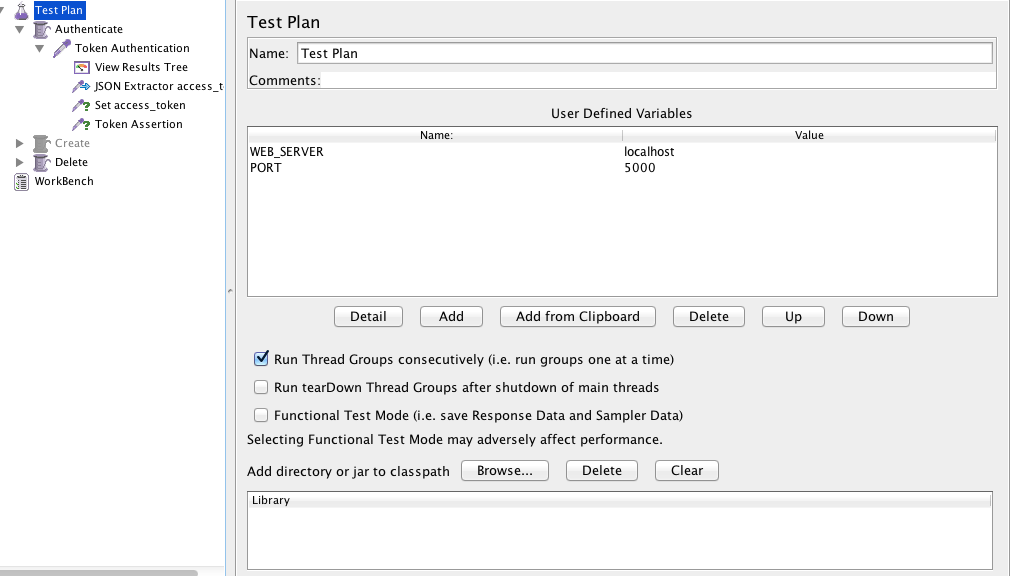
This example I am getting json path from an authentication request and use it in another group thread.
Remember install the json plugin for jmeter (If you don’t have), you can do that with homebrew command :

brew install jmeter --with-plugins


  • Create a test plan and set the web server and the port:


Screen Shot 2015-11-11 at 20.08.27


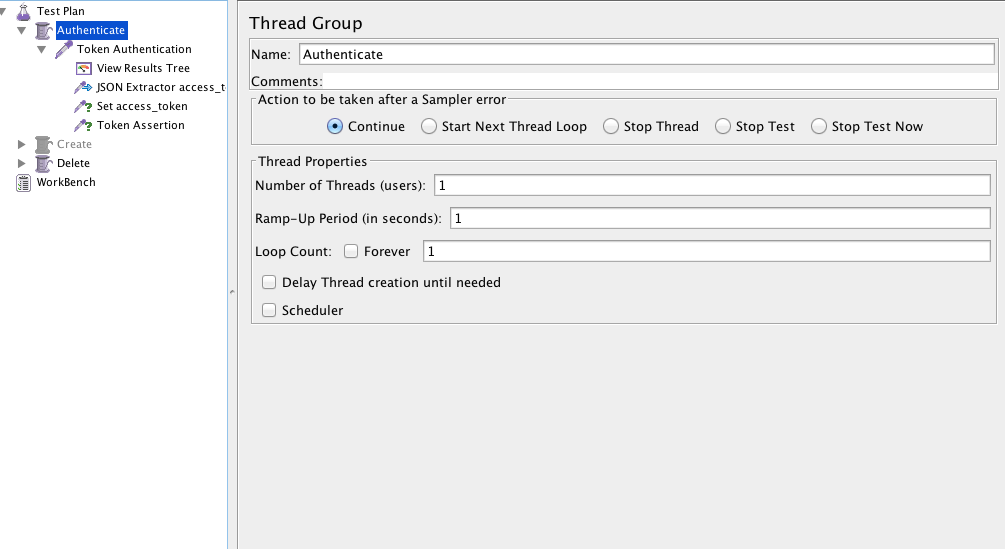
  • Create a Thread Group:


Screen Shot 2015-11-11 at 20.08.44

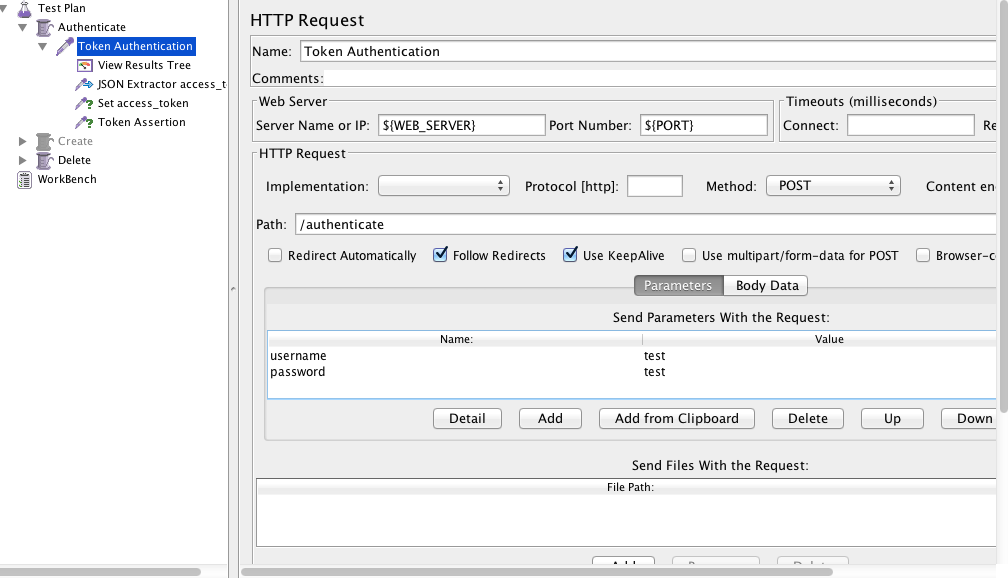
  • Create HTTP Request, use the variables for the server and the password. Put the path of the authentication page, username and the password.


Screen Shot 2015-11-11 at 20.09.09

  • Create Json Path Extractor and put the path Expression and the variable that you will use. You can test if your path is correct here.


Screen Shot 2015-11-11 at 20.10.14


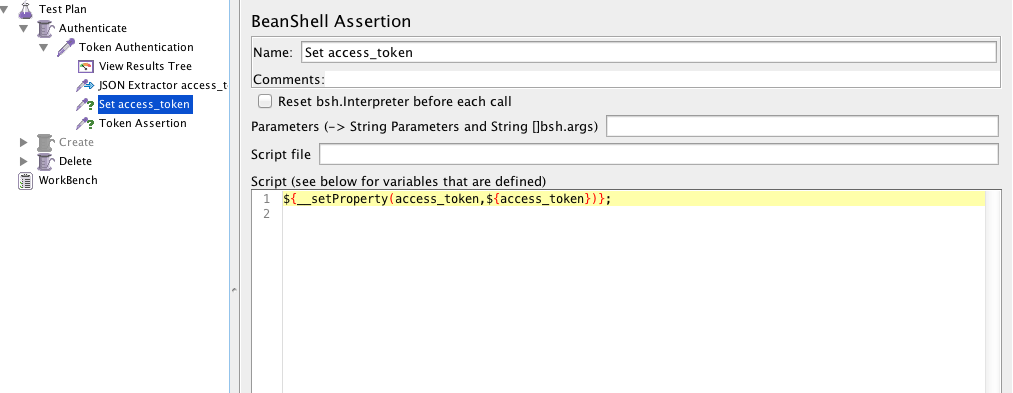
  • Create a beanshell Assertion or Post processor and set the property:


${__setProperty(access_token,${access_token})};

Screen Shot 2015-11-11 at 20.10.27


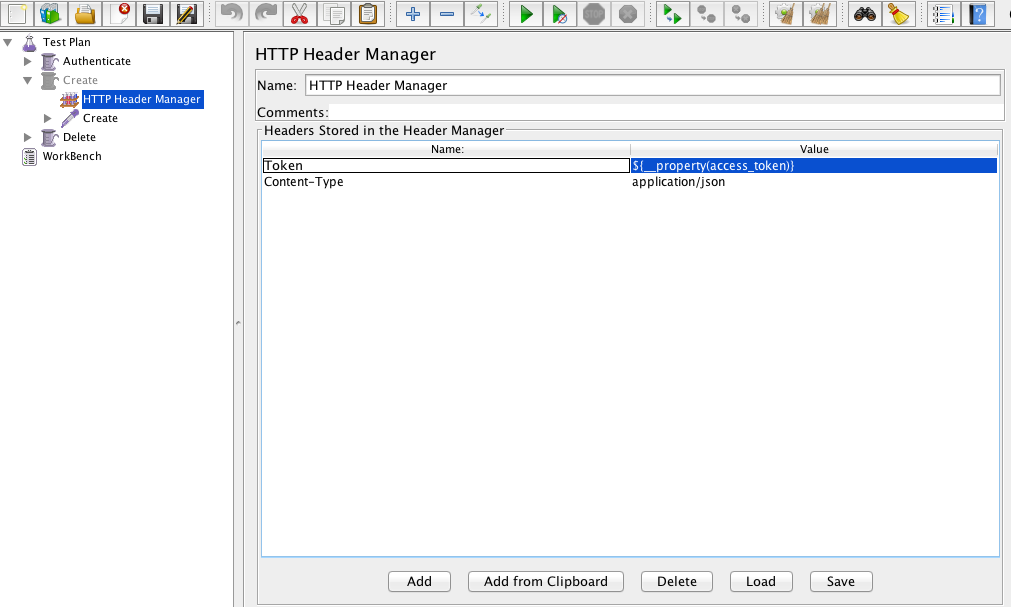
  • Create a new Thread Group and a HTTP Header Manager and use the same variable you used before:


${__property(access_token)}

Screen Shot 2015-11-11 at 20.42.41


  • Create the Listener > View Result Tree and it’s done, you can run the jmeter and see if it’s getting the token and using in the next thread group


See you guys 🙂

Java Multithreading – Free course

Hi guys, today I will post the link of a free course that I’ve been doing these last days. So, if you are interested to know a bit more of java multithreading, here is the link.


Linkhttps://www.udemy.com/java-multithreading/learn/#/


It’s teaching how to manage threads, if you need lock them, synchronize… The instructor knows how to explain things in a clear way which sometimes is really hard to find. So, I hope you like it and be useful as it’s being for me.

Thank you guys ! See you next week !

Using Spoon with Cucumber

Hi guys,

Today I will post about Spoon which is a framework that I’ve been learning. I hope this helps someone too, because spoon is quite new and doesn’t have too much support if you want to run with Cucumber.

Spoon is a framework to run android reports and Cucumber is a BDD framework.

  • If you are using gradle, you need to open your build.gradle and add:
 classpath('com.stanfy.spoon:spoon-gradle-plugin:1.0.3') {
  exclude module: 'guava'
  }

  • In your app-build.gradle:
plugin 'spoon'

dependencies{
 androidTestCompile 'com.squareup.spoon:spoon-client:1.2.0'
 androidTestCompile 'info.cukes:cucumber-android:1.2.4'
 androidTestCompile 'info.cukes:cucumber-picocontainer:1.2.4'
 } 
  • Create Spoon task in the same file:

spoon {
 debug = true
 if (project.hasProperty('spoonFailNoConnectedDevice')) {
    failIfNoDeviceConnected = true
 }

 if (project.hasProperty('cucumberOptions')) {
    instrumentationArgs = ["cucumberOptions=" + "'${project.cucumberOptions}'"]
 }

}
  • The instrumentation runner:
public class Instrumentation extends CucumberInstrumentation {
@Override
public void onStart() {
    runOnMainSync(new Runnable() {
        @Override
        public void run() {
            Application app = (Application) getTargetContext().
getApplicationContext();
            String simpleName = Instrumentation.class.getSimpleName();

            // Unlock the device so that the tests can input keystrokes.
            ((KeyguardManager) app.getSystemService(KEYGUARD_SERVICE)) //
                .newKeyguardLock(simpleName) //
                .disableKeyguard();
            // Wake up the screen.
            ((PowerManager) app.getSystemService(POWER_SERVICE)) //
                .newWakeLock(FULL_WAKE_LOCK | ACQUIRE_CAUSES_WAKEUP 
| ON_AFTER_RELEASE, simpleName) //
                .acquire();
        }
    });

    super.onStart();
}

}
  • Now you can use gradle command line with spoon task and pass Cucumber arguments. Like this one:
gradle spoon -PspoonFailNoConnectedDevice -PcucumberOptions='--tags @smoke'
      • Or you can use adb command line – without spoon report generation:
adb shell am instrument -w -e cucumberOptions "'--tags @smoke'" 
com.rsouza.test/com.rsouza.test.Instrumentation
  • Instrument arguments
am instrument argument Description
-e count true Count the number of tests (scenarios)
-e debug true Wait for a debugger to attach before starting to execute the tests.
-e log true Enable Cucumber dry-run (same as –e dryRun true)
-e coverage true Enable EMMA code coverage
-e coverageFile “/path/coverage.ec Set the file name and path of the EMMA coverage report
  • Cucumber arguments

https://cucumber.io/docs/reference/jvm#third-party-runners

  • Example: Use Cucumber and adb arguments
adb shell am instrument -w -e log true -e cucumberOptions "'--tags @debug'"
 com.rsouza.test/com.rsouza.test.Instrumentation

Thank you guys ! See you next week 🙂

Environment variables, BuildConfig, Gradle.properties and Android Studio

Hello guys,

Today I will post some simple steps to have some environment variables in your android studio project. So, if you have some confidential data to use in your android tests, you can hide the password, username or if you just want to have some environment variables separated from your project, just follow these steps:

So, let’s start:

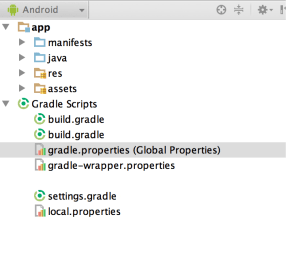
Screen Shot 2015-09-17 at 21.58.28

  • In your gradle.properties create the environment variables (You can find this file inside of your Android Studio project or in your /Users/Your Username/.gradle)
testUsername="username"
testPassword="password"
  • In your build.gradle file (Remember, you can have many build.gradle file, so first try to find the one that you want to share with all projects or the one which you will use only in your project > buildTypes > debug, as it is showed in the structure below). The “USERNAME” and “PASSWORD” will be the variables in your code and the testUsername and testPassword should be the same variable which you are using in your gradle.properties file (above).
android {
buildTypes {
  debug {
    ...
    buildConfigField "String", "USERNAME", testUsername
    buildConfigField "String", "PASSWORD", testPassword
   }

  release {
   ...
    }
  }
}
  • After this, you need to sync your gradle.
  • And in your code, just call the variables like this:
BuildConfig.USERNAME
BuildConfig.PASSWORD

I am using gradle 2.4 and androidStudio 1.3.2.

Thank you, see you next week 🙂

Resources:

http://examples.javacodegeeks.com/core-java/gradle/gradle-properties-build-configuration-example/

http://www.rainbowbreeze.it/environmental-variables-api-key-and-secret-buildconfig-and-android-studio/

Open your application with CodedUI and C#

Hello guys, I will post a snippet code which you can use to open your Desktop Windows Application and start your automated test. You can see the code on my github account too. Do not forget to change the path of your application and maybe the timeout to load the application.


using System;
using System.Diagnostics;
using Microsoft.VisualStudio.TestTools.UITesting.WinControls;
using Microsoft.VisualStudio.TestTools.UITesting.Playback;
using System.Windows.Forms;

namespace ProjectName
{
	public class Application{

	        public static void Open()
	        {
	            System.Diagnostics.Process proc = new System.Diagnostics.
Process();
	            proc.EnableRaisingEvents = false;
	            proc.StartInfo.FileName = "C:\\Users\\yourUser\\AppData
\\Roaming\\Microsoft\\Windows\\Start Menu\\Programs\\UI.appref-ms";
	            try
	            	{ 				
	             	   proc.Start();
			   WaitApplicationLoad();
			}
 		    catch (Exception e)
	             	{
	                   MessageBox.Show(e.Message);
	               	}
	        }

	        public static bool WaitApplicationLoad(){
	        	WinButton button = new WinButton();
			while(!button.WaitForControlExist())
			{
				PlayBack.Wait(5000);
			}
	        }	
	}
}


Why are you using Playback instead of the Thread.Sleep ?

  1. There is PlaybackSettings.ThinkTimeMultiplier which you can modify your sleep.  By default this variable is 1 but you can increase\decrease it to change the wait time all over the code.  For example, if you are specifically testing over slow network (some other slow performance case), you can change this variable at one place (or even in the configuration file) to 1.5 to add 50% extra wait at all places.
  2. Playback.Wait() internally calls Thread.Sleep() (after above computation) in smaller chunks in a for-loop while checking for user cancel\break operation.  In other words, Wait() lets you cancel playback before the end of the wait whereas sleep might not or throw exception.

I’ve found this code to open the application, but to be honest it’s a recorded code, which means that it’s generated automatically when you are recording the manual clicks on your application. I don’t recommend because with the recording comes a lot of trash code. But you can change the names and remove the trash of the code anyway.


   public class UISwitcherProDesktopTPWindow : WinWindow
    {

        public UISwitcherProDesktopTPWindow()
        {
            #region Search Criteria
            this.SearchProperties[WinWindow.PropertyNames.Name] = 
"Application Name";
            this.SearchProperties.Add(new PropertyExpression(WinWindow.
PropertyNames.ClassName, "WindowsForms10.Window", 
PropertyExpressionOperator.Contains));
            this.WindowTitles.Add("Application Desktop");
            #endregion
        }
    }


Thank you guys, it’s just this for today. See you next week 🙂


References:

https://github.com/rafaelaazevedo/CodedUI/blob/master/OpenApplication.cs

https://social.msdn.microsoft.com/Forums/en-US/a42cf655-e202-4bd4-82e2-036d7015cab5/how-do-i-make-codedui-wait-for-application-to-fully-load?forum=vsautotest

https://social.msdn.microsoft.com/Forums/en-US/a2a0d838-c55e-4304-a508-b66f79f9da69/waitforcontrolexist-returns-false-event-if-control-available-on-screen?forum=vsautotest

http://blogs.msdn.com/b/gautamg/archive/2010/02/12/how-to-make-playback-wait-for-certain-event.aspx

Devops – Brief explanation

The Devops movement is built around a group of people who believe that the application of a combination of appropriate technology and attitude can revolutionize the world of software development and delivery. Communication is the key here.

The attitude that we are talking about is: Imagine all technical people feeling empowered, and capable of helping in all areas. Devs creating scenarios and thinking in business problems, QA thinking in infrastructure solutions, etc.

DevOps expands the concept of Agile not only for the code part but the entire project, from the scratch up to the maintenance phase. For this reason I found DevOps very similar with BDD.

Look this:

One of the key concepts is is involving the entire team (DBAS, Devs, QA, System administrators …) in the project from the scratch.


As you can see, DevOps and BDD follow the concept of all the team working together and participating since the beginning of the project. So, you can find the problems before you actually start develop something. The aims here are reduce time to deliver, increase the quality, share knowledge, cooperative work, earn money.

“DevOps” doesn’t differentiate between different sysadmin sub-disciplines – “Ops” is a blanket term for systems engineers, system administrators, operations staff, release engineers, DBAs, network engineers, security professionals, and various other subdisciplines and job titles. “Dev” is used as shorthand for developers in particular, but really in practice it is even wider and means “all the people involved in developing the product,” which can include Product, QA, and other kinds of disciplines.

This post on The Agile Admin compares & contrasts DevOps with Agile:
“The best way to define <Devops> in depth is to compare to the definition of agile development.  Agile development, according to Wikipedia and the agile manifesto, consists of a couple different “levels” of thinking.

Agile Principles – like “business/users and developers working together.”  These are the core values that inform agile, like collaboration, people over process, software over documentation, and responding to change over planning.

Agile Methods – specific process types used to implement the agile principles.  Iterations, Lean, XP, Scrum.  “As opposed to waterfall.”

Agile Practices – techniques often found in conjunction with agile development, not linked to a given method flavor, like test driven development, continuous integration, etc.
I believe the different parts of DevOps that people are talking about map directly to these three levels.
 
DevOps Principles – How we need to think differently about operations.  Examples include dev/ops collaboration, “infrastructure as code,” and other high level concepts; things likeJames Turnbull’s 4-part model seem to be spot on examples of trying to define this arena.

DevOps Methods – Process you use to conduct agile operations – including iterations, lean/kanban, stuff you’d read in Visible Ops.

DevOps Practices – Specific techniques and tools used as part of implementing the processes, like automated build and provisioning, continuous deployment, monitoring, anything you’d have a “toolchain” for.”


So, the Devops movement is characterized by people with a multidisciplinary skill set – people who are comfortable with infrastructure and configuration, but also happy to roll up their sleeves, write tests, debug, and ship features.

I’ve summarised with a mix of researches and my own opinion. I hope this helps you have a better understanding what is this trend and how you can apply it. See you next week ! Thank you 🙂

Sources:

http://www.jedi.be/blog/2010/02/12/what-is-this-devops-thing-anyway/

http://theagileadmin.com/what-is-devops/

http://en.wikipedia.org/wiki/Agile_software_development

http://www.itpi.org/home/visibleops.php

http://www.kartar.net/2010/02/what-devops-means-to-me/

http://agilemanifesto.org/

http://theagileadmin.com/what-is-devops/

Parallel tests with Maven – Junit

Hello guys,

Today I will post about multithreading with Maven. We have some plugins which are able to do the thread safe in your tests:

  • Surefire offers a variety of options to execute tests in parallel, allowing you to make best use of the hardware at your disposal.
  •  

  • Forking in particular can also help keeping the memory requirements low.


How can you configure the test execution ?

 
One can impose thread-count limitations on suites, classes or methods using one or more of the parameters threadCountSuites, threadCountClasses and threadCountMethods. If only threadCount is specified, Surefire attempts to estimate the thread counts for suites, classes and methods and reuses the threads in favor of a leaf, e.g. parallel methods (possibly increasing concurrent methods).
 
In the next post I will do some tests with junit and testng, so I can talk more about this plugin with each framework, but for now you can see the example pages: JUnit and TestNG.

 
As an example with an unlimited number of threads, there is maximum of three concurrent threads to execute suites: parallel = all, useUnlimitedThreads = true, threadCountSuites = 3. In the second example the thread-counts represent a ratio, e.g. for parallel = all, threadCount = 16, threadCountSuites = 2, threadCountClasses = 3, threadCountMethods = 5. Thus the concurrent suites will be 20%, concurrent classes 30%, and concurrent methods 50%.
 
Finally, the threadCount and useUnlimitedThreads may not be necessarily configured if the equivalent thread-counts are specified for the value in parallel.
 
The parameters parallelTestsTimeoutInSeconds and parallelTestsTimeoutForcedInSeconds are used to specify an optional timeout in parallel execution. If the timeout is elapsed, the plugin prints the summary log with ERROR lines: “These tests were executed in prior to the shutdown operation”, and “These tests are incomplete” if the running Threads were interrupted.
 
The important thing to remember with the parallel option is: the concurrency happens within the same JVM process. That is efficient in terms of memory and execution time, but you may be more vulnerable towards race conditions or other unexpected and hard to reproduce behavior.


Parallel Test Execution and Single Thread Execution

 
As mentioned above the parallel test execution is used with specific thread count. Since of Surefire 2.18, you can apply the JCIP annotation @net.jcip.annotations.NotThreadSafe on the Java class of JUnit test (test class, Suite, Parameterized, etc.) in order to execute it in single Thread instance. The Thread has name “maven-surefire-plugin@NotThreadSafe“.
 
This way the parallel execution of tests classes annotated with @NotThreadSafe are forked in single thread instance (don’t mean forked JVM process).
 
If the Suite or Parameterized is annotated with @NotThreadSafe, the suite classes are executed in single thread. You can also annotate individual test class referenced by Suite, and the other unannotated test classes in the Suite can be subject to run in parallel.

 
Note: As designed by JUnit runners, the static methods annotated with @BeforeClass and @AfterClass are called in parent thread. Assign classes to the @NotThreadSafe Suite to prevent from this trouble.


Forked Test Execution


The parameter forkCount defines the maximum number of JVM processes that Surefire will spawn concurrently to execute the tests. It supports the same syntax as -T in maven-core: if you terminate the value with a ‘C’, that value will be multiplied with the number of available CPU cores in your system. For example forkCount=2.5C on a Quad-Core system will result in forking up to ten concurrent JVM processes that execute tests.

 
The parameter reuseForks: to reuse the processes to execute the next tests (reuseForks=true/false). The default setting is forkCount=1/reuseForks=true, which means that Surefire creates one new JVM process to execute all tests in one maven module. forkCount=1/reuseForks=false executes each test class in its own JVM process, one after another. You can use the place holder ${surefire.forkNumber} within argLine, or within the system properties (both those specified via mvn test -D... and via systemPropertyVariables).

 
The following is an example configuration that makes use of up to three forked processes that execute the tests and then terminate. A system property databaseSchema is passed to the processes, that shall specify the database schema to use during the tests. The values for that will be MY_TEST_SCHEMA_1, MY_TEST_SCHEMA_2, and MY_TEST_SCHEMA_3 for the three processes.
 
<plugins>
[...]
  <plugin>
    <groupId>org.apache.maven.plugins</groupId>
    <artifactId>maven-surefire-plugin</artifactId>
    <version>2.18.1</version>
    <configuration>
        <forkCount>3</forkCount>
        <reuseForks>true</reuseForks>
        <argLine>-Xmx1024m -XX:MaxPermSize=256m</argLine>
        <systemPropertyVariables>
            <databaseSchema>MY_TEST_SCHEMA_${surefire.forkNumber}</databaseSchema>
        </systemPropertyVariables>
    </configuration>
  </plugin>
[...]
</plugins>


In case of a multi module project with tests in different modules, you could also use, say, mvn -T 2 ... to start the build, yielding values for ${surefire.forkNumber} ranging from 1 to 6.
 
By setting reuseForks=true, you can reuse the same context for consecutive tests. And as many tests tend to use and access the same test data, you can avoid database locks during the concurrent execution by using distinct but uniform database schemas.
 
As reuseForks=false creates a new JVM process for each test class, using parallel=classes would have no effect. You can still useparallel=methods, though.
 
When using reuseForks=true and a forkCount value larger than one, test classes are handed over to the forked process one-by-one. Thus, parallel=classes would not change anything. However, you can use parallel=methods: classes are executed in forkCountconcurrent processes, each of the processes can then use threadCount threads to execute the methods of one class in parallel.


Examples:

 
In your pom.xml file:

Add ths surefire plugin.

<plugins>
[...]
  <plugin>
    <groupId>org.apache.maven.plugins</groupId>
    <artifactId>maven-surefire-plugin</artifactId>
    <version>2.18.1</version>
    <dependencies>
      <dependency>
        <groupId>org.apache.maven.surefire</groupId>
        <artifactId>surefire-junit47</artifactId>
        <version>2.18.1</version>
      </dependency>
    </dependencies>
  </plugin>
[...]
</plugins>


After, you must set the parallel parameter, and may change thethreadCount or useUnlimitedThreads attribute.
 

<plugins>
    [...]
      <plugin>
        <groupId>org.apache.maven.plugins</groupId>
        <artifactId>maven-surefire-plugin</artifactId>
        <version>2.18.1</version>
        <configuration>
          <parallel>methods</parallel>
          <threadCount>10</threadCount>
        </configuration>
      </plugin>
    [...]
</plugins>


As of Surefire 2.7, no additional dependencies are needed to use the full set of options with parallel. As of Surefire 2.16, new thread-count attributes are introduced, namely threadCountSuites, threadCountClasses and threadCountMethods. Additionally, the new attributes parallelTestsTimeoutInSeconds and parallelTestsTimeoutForcedInSeconds are used to shut down the parallel execution after an elapsed timeout, and the attribute parallel specifies new values.

Thank you guys ! Hope you can enjoy and search even more about this. I’ve just summarised what I think it’s more important to know about junit, maven and parallel tests 🙂

As always if you have some question, suggestion feel free to comment below. I will reply as soon as possible and if I don’t know I will find someone to help me reply to you. Have an excellent weekend everyone ! See you next week !
 
 
Resources:

https://maven.apache.org/surefire/maven-surefire-plugin/examples/fork-options-and-parallel-execution.html

http://maven.apache.org/surefire/maven-surefire-plugin/examples/junit.html